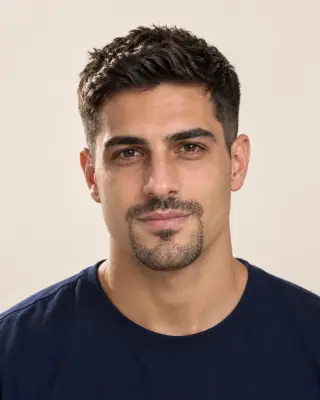
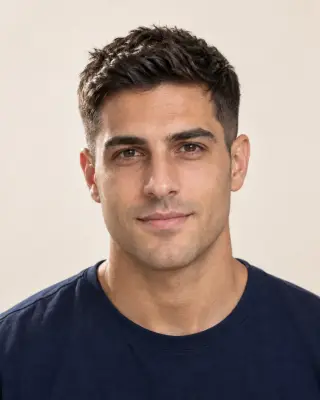
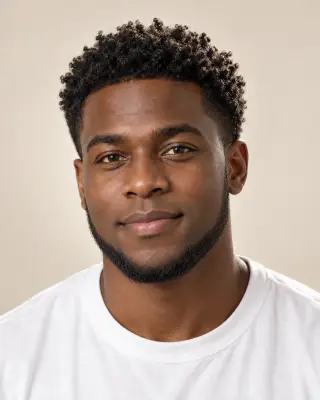
Your AI clean shave preview
No Beard Filter — Try a Clean Shave
Preview a clean shave, stubble or a goatee on your photo. See the jaw under your beard before you pick up the razor.
No photo handy? Try a sample:
Choose How Much Beard to Shave
Selected:Clean shave
Designed to change only your facial hair while keeping your face and haircut.
6 shave styles · Stubble, short and full beards · Free credits for new accounts
The shave edit
Explore 6 No Beard Styles on One Face
Compare what stays, how the jawline reads and the upkeep of each style. All six start from one bearded portrait, so only the facial hair changes between them.
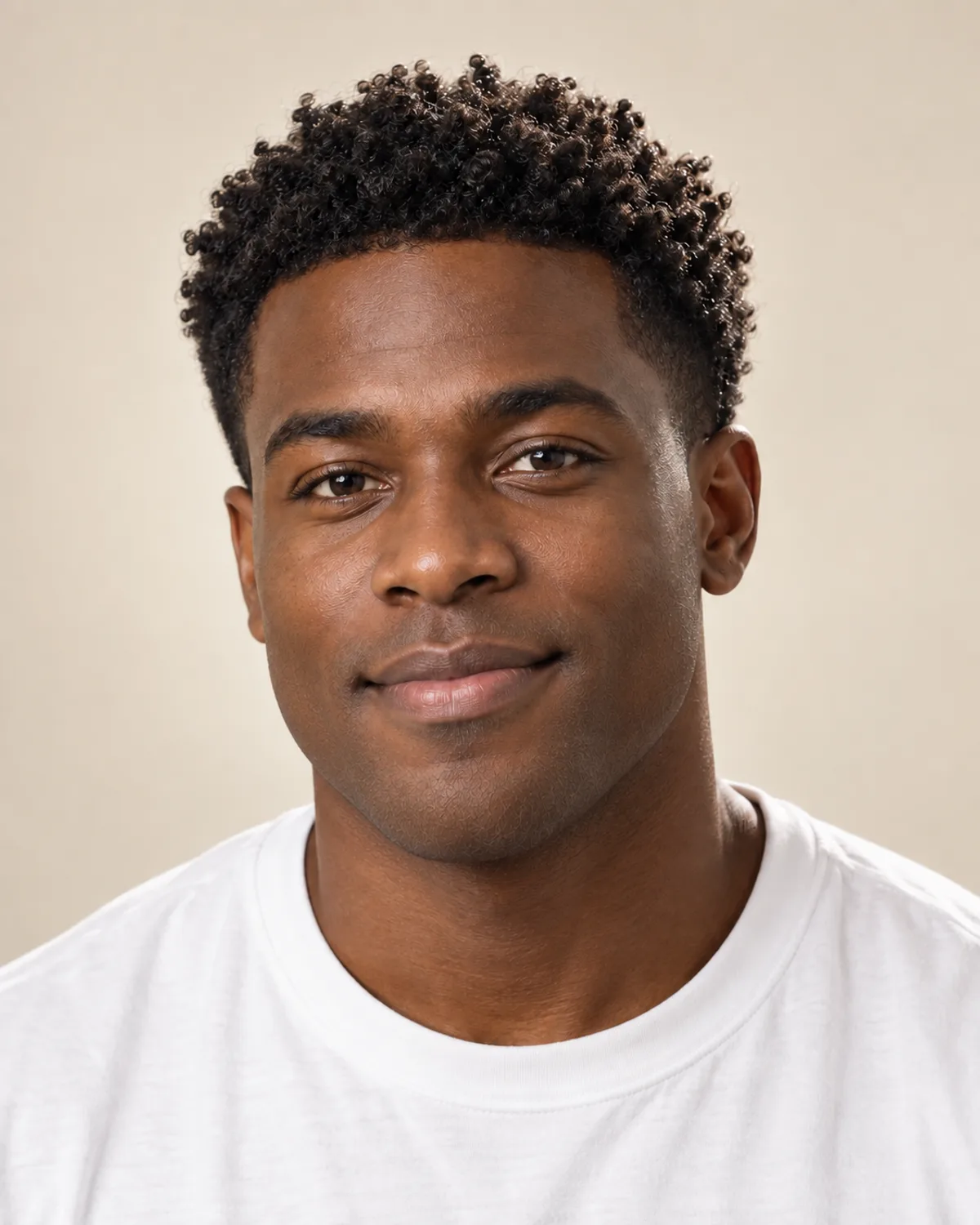
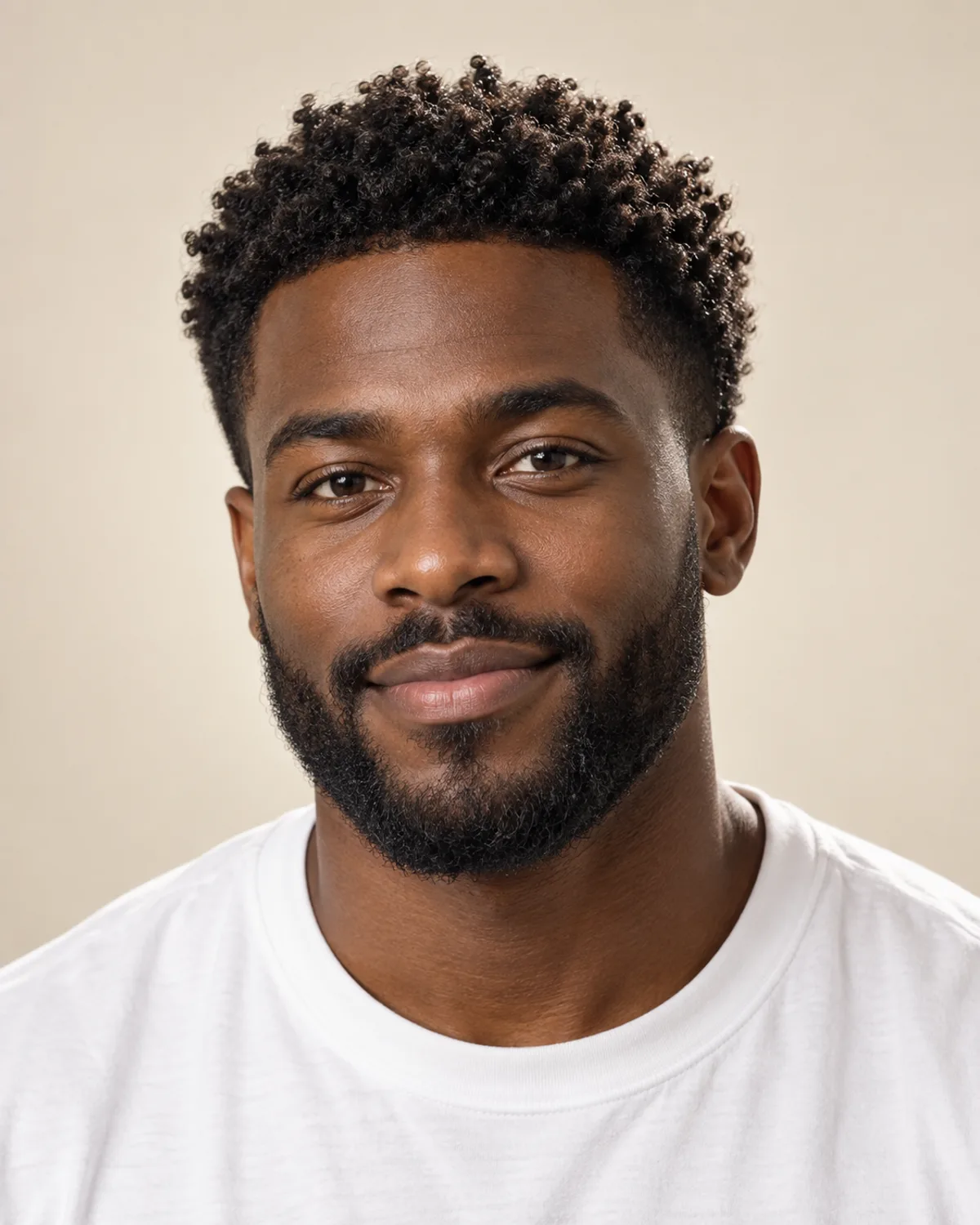
Clean shave
Everything off, for the full no beard look.
- What stays
- Nothing: cheeks, upper lip, chin and neck are bare; the sideburns stay with the haircut.
- The jawline
- Fully visible from ear to chin, with no hair to soften or add shape.
- Upkeep
- A razor shave most days; dark, fast-growing hair can show a shadow by evening.
Beard to Clean Shave: Before & After
Compare AI-created examples on a second face, starting from a full beard and from light stubble. Drag each slider to see the change.
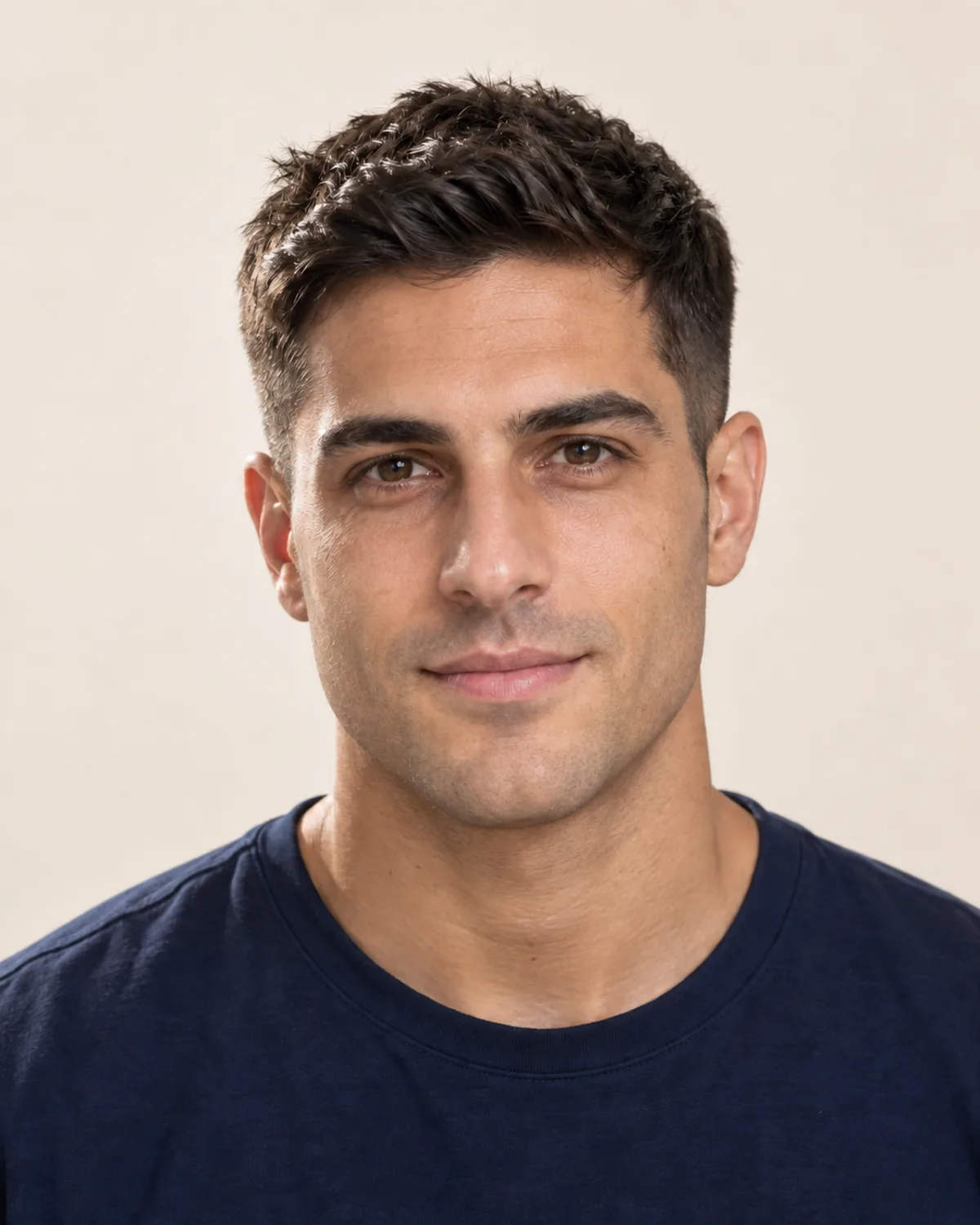
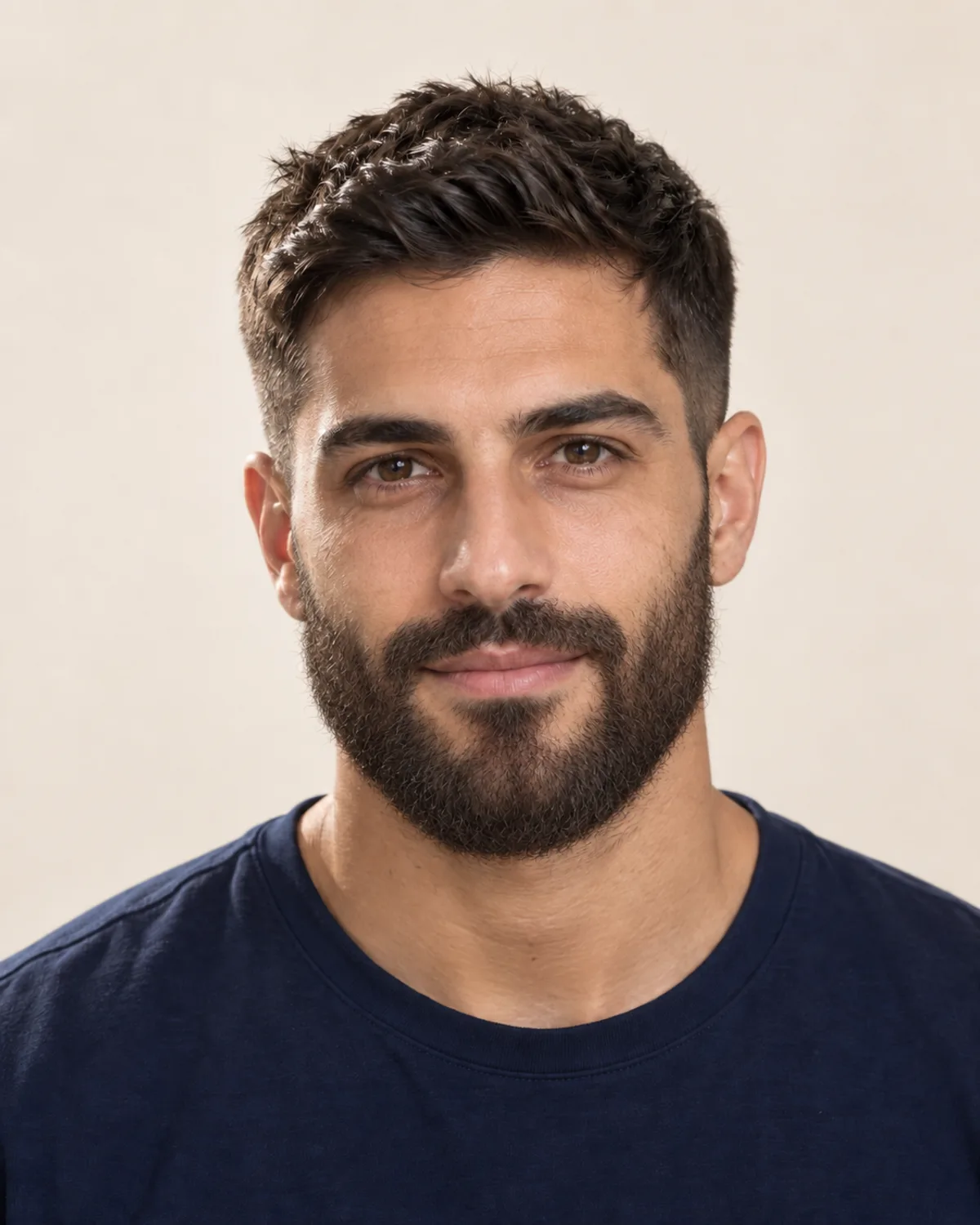
A Full Beard Shaved Clean
The biggest change on this page: see the jaw, chin and upper lip that a full beard covers.
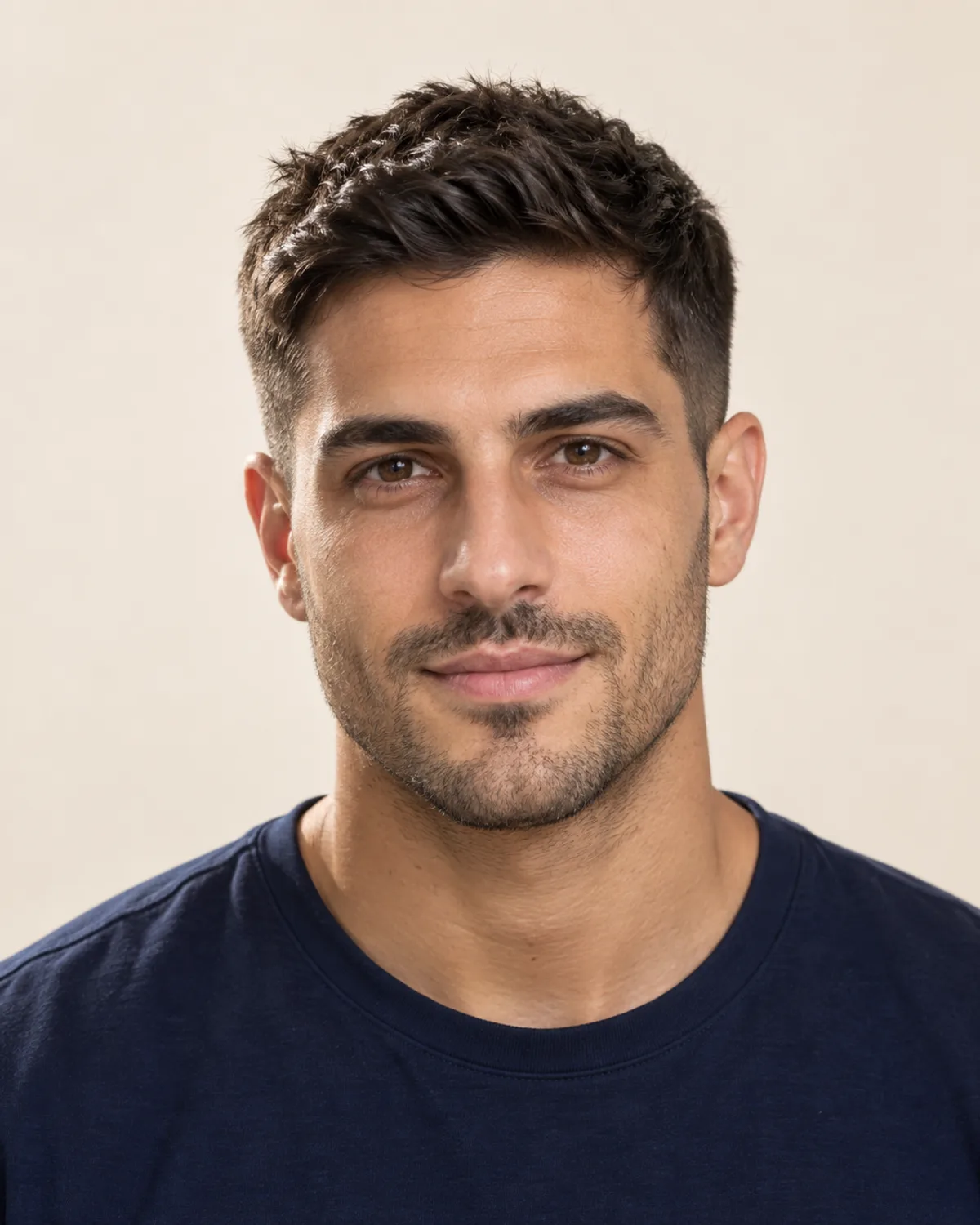
The Same Full Beard Trimmed to Stubble
Not ready to go bare? Stubble keeps the beard's outline at a fraction of the length.
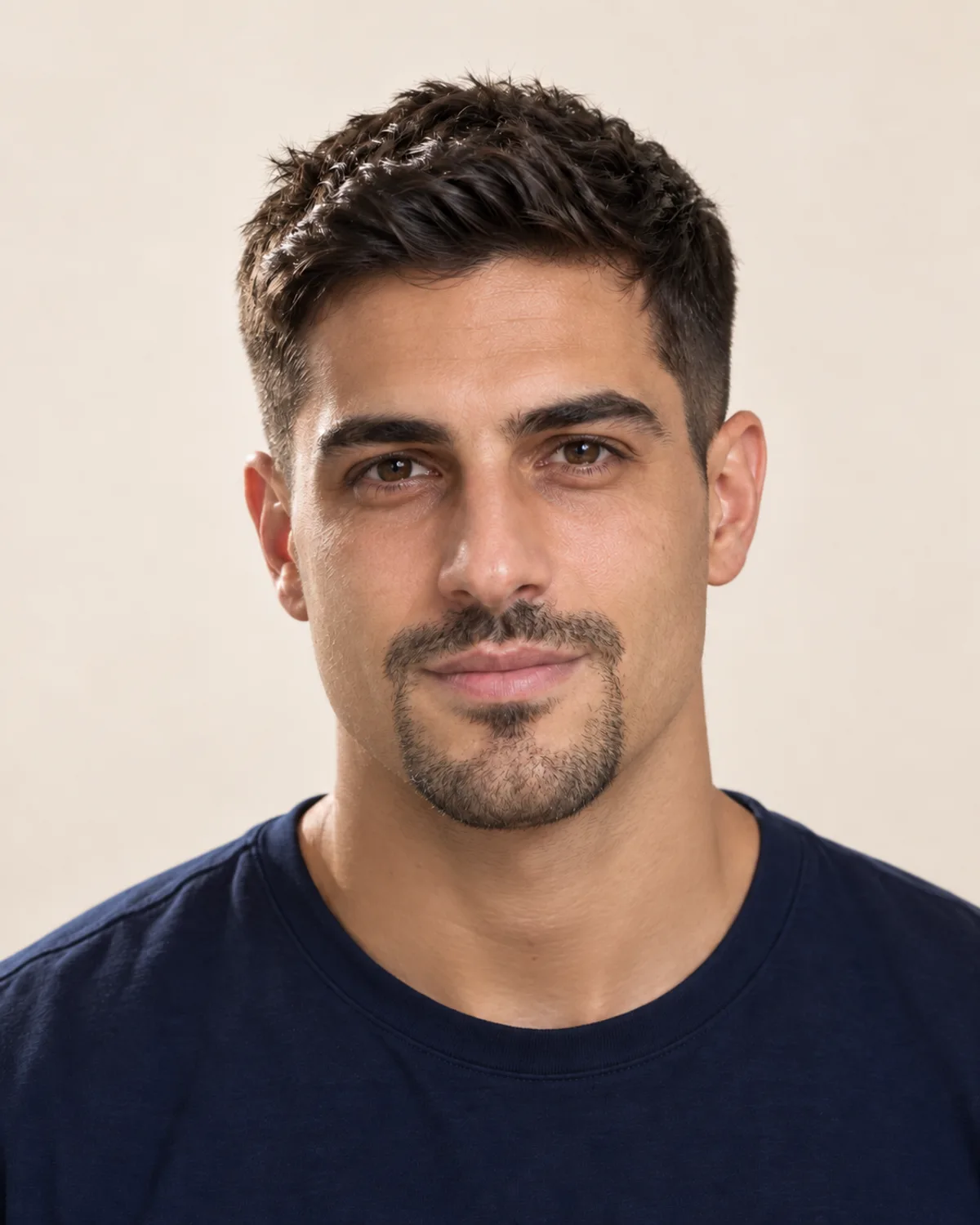
Stubble Cut Back to a Goatee
Keep the chin and mustache, lose the cheeks: a halfway step if shaving everything feels like too much.
Go Clean-Shaven with 5 Simple Checks
Shaving takes minutes; growing a beard back takes weeks. The preview shows your face without the beard, and these five points cover what a photo can't.
A beard can soften a strong jaw or hide a softer one. If the preview shows more than you want to reveal, stubble or a goatee keeps some shape along the chin.
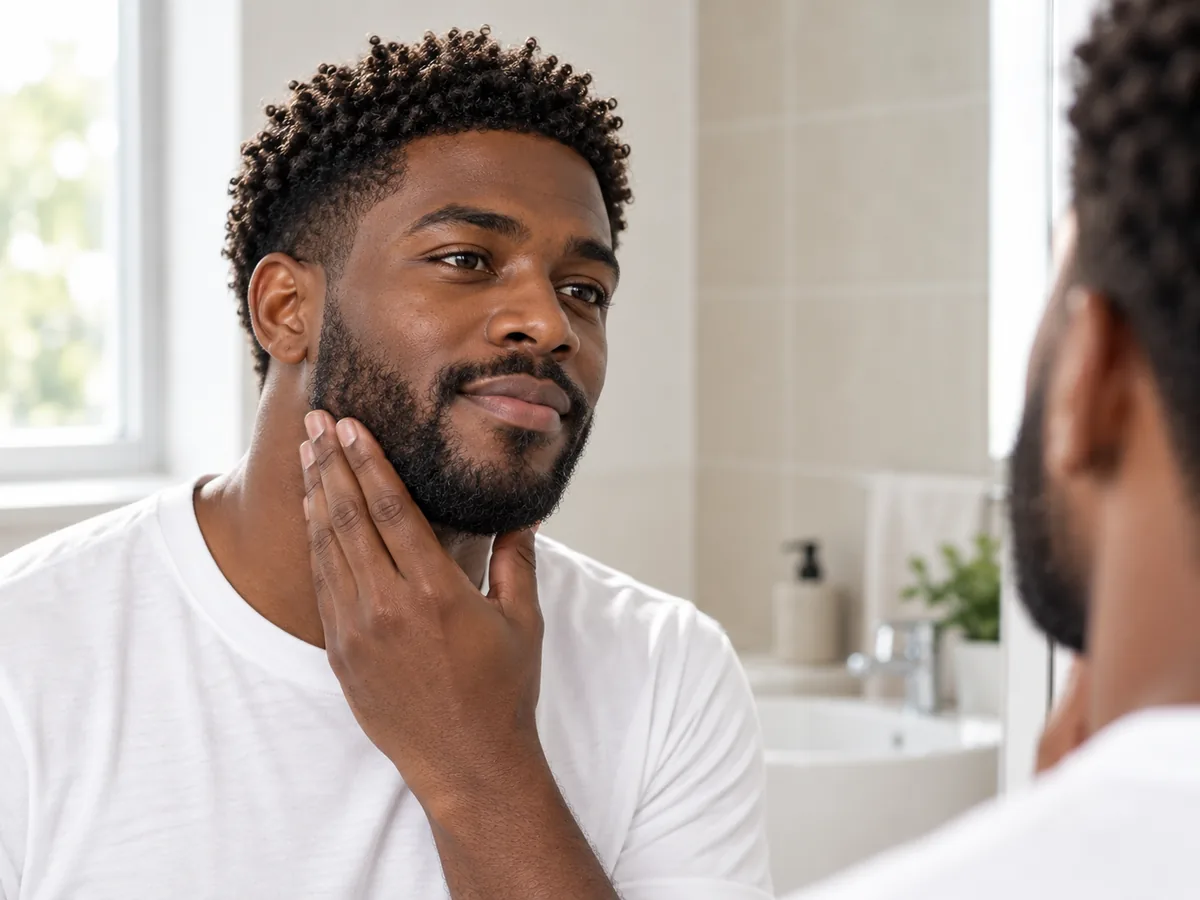
Press the beard flat along your jaw: the outline you feel is what a clean shave reveals.
Curly and coily beard hair can grow back into the skin after a close razor shave. A trimmer that leaves a shadow, shaving with the grain and a sharp blade can all help.
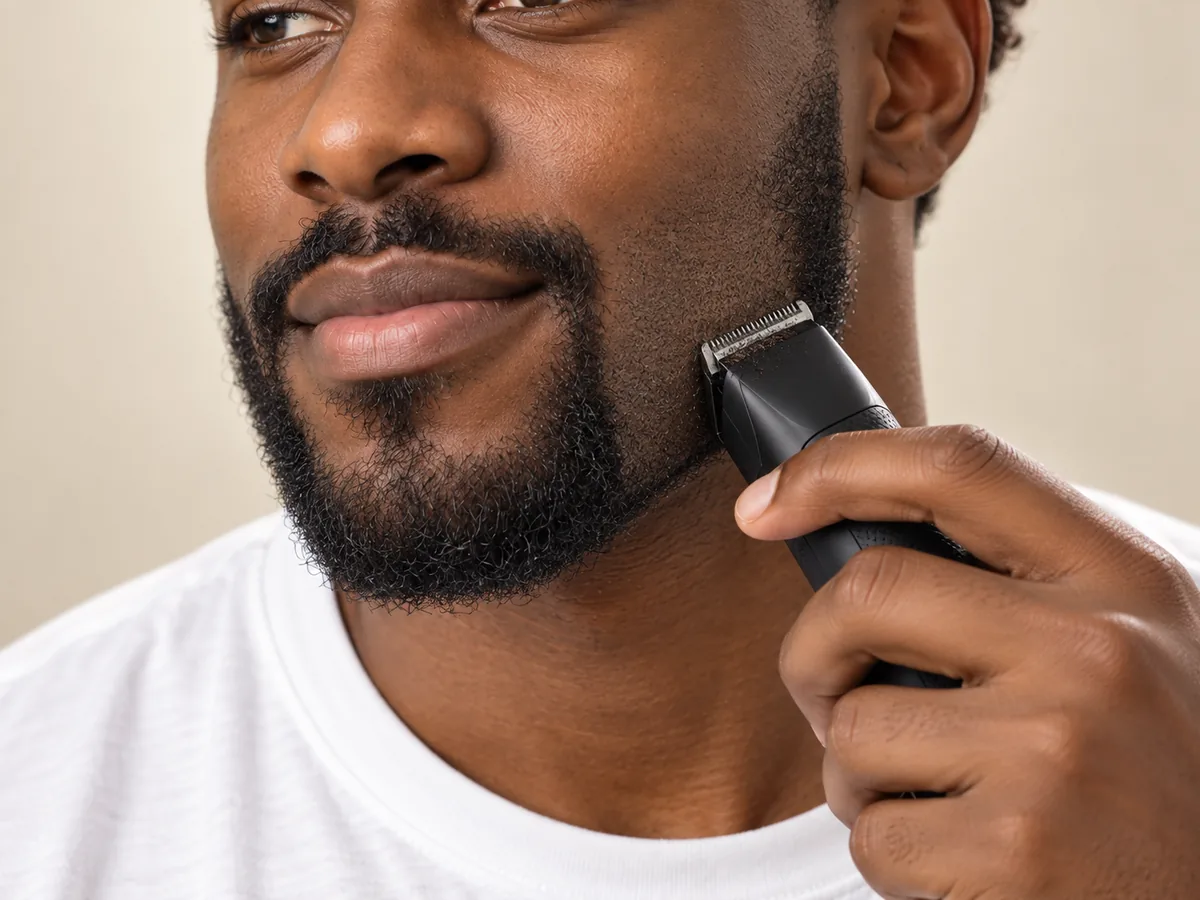
A trimmer stops just short of the skin, leaving a shadow instead of a razor-close shave.
Skin that sat under a beard for months is often lighter than your forehead and cheekbones. It usually evens out over time; wear sunscreen while it does.
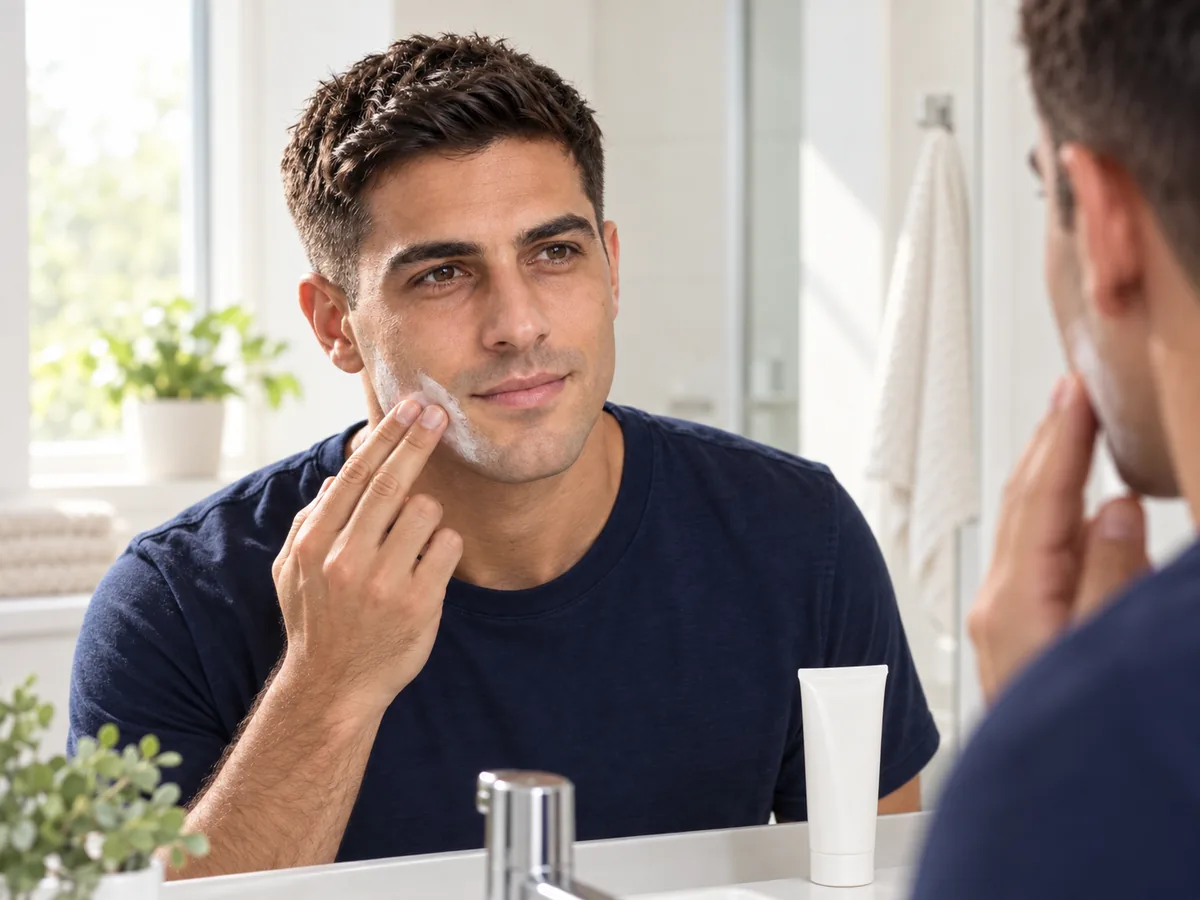
Newly bare skin can look lighter at first. Protect it with sunscreen while the tone evens out.
Stubble returns within days; a short beard usually takes weeks and a full beard often a few months, with an itchy stage early on. Growth varies from man to man, and the preview can't predict yours.
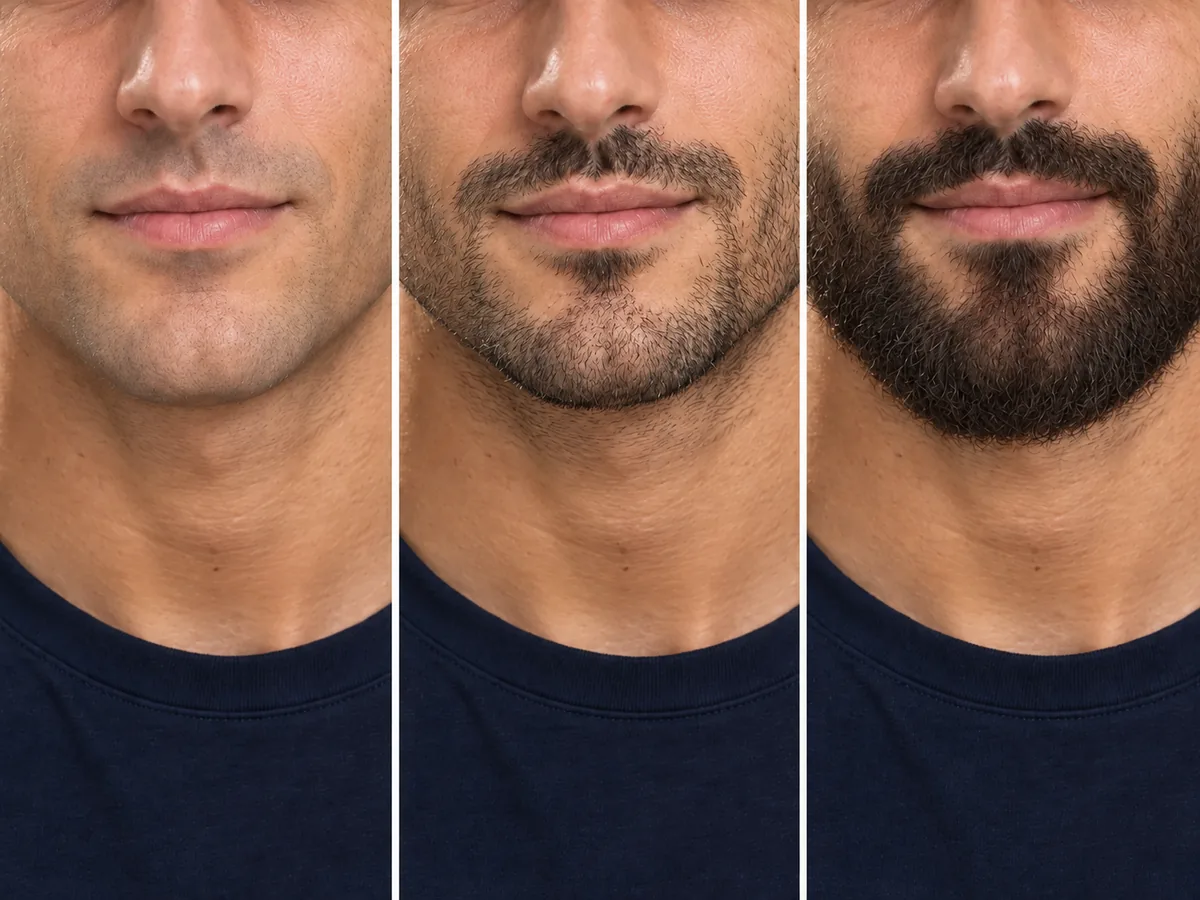
Taking a beard off is quick; growing it back happens in stages over weeks.
Tight-fitting respirators need skin free of facial hair where the mask seals, and some workplaces and uniforms have grooming rules. Check yours before choosing a style.

A tight-fitting mask seals against bare skin, so any facial hair under the seal matters.
How to remove a beard from a photo
Use the No Facial Hair Filter in 3 Steps
Upload a photo, choose how much to shave and compare your preview.
Step 01
Start with a Clear, Front-Facing Photo
Use a front-facing portrait with even light and your jaw, chin and neck visible. You can also start with a sample photo in the tool.
- Even light, jaw and neck visible, no hands on your face.
- JPG, PNG or WebP · Up to 10 MB

Step 02
Choose How Much Beard to Remove
Take it all off, leave a shadow or stubble, or keep only the mustache, a goatee or a chin strap. Generate a preview to see it on your photo.
- Clean shave, stubble, goatee and more.
- Select a style, then generate your preview.
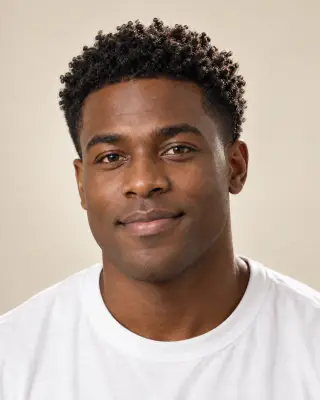
Clean shave
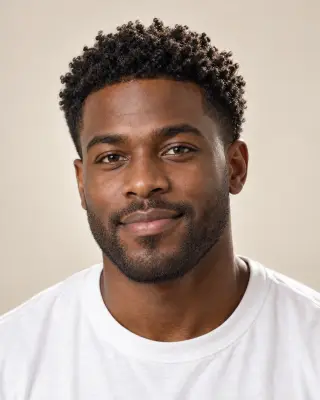
Trimmed to stubble

Goatee only
Step 03
Compare Your Face and Save a Favorite
Compare the preview with your original, then download a result to keep or show your barber.
- Compare your jaw, chin and upper lip.
- Save a result, or try another style.
Before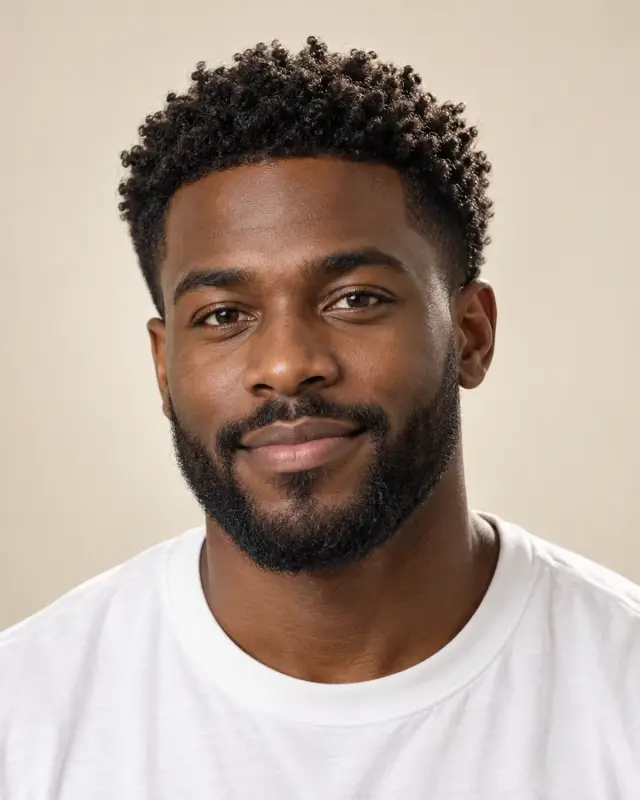 After
After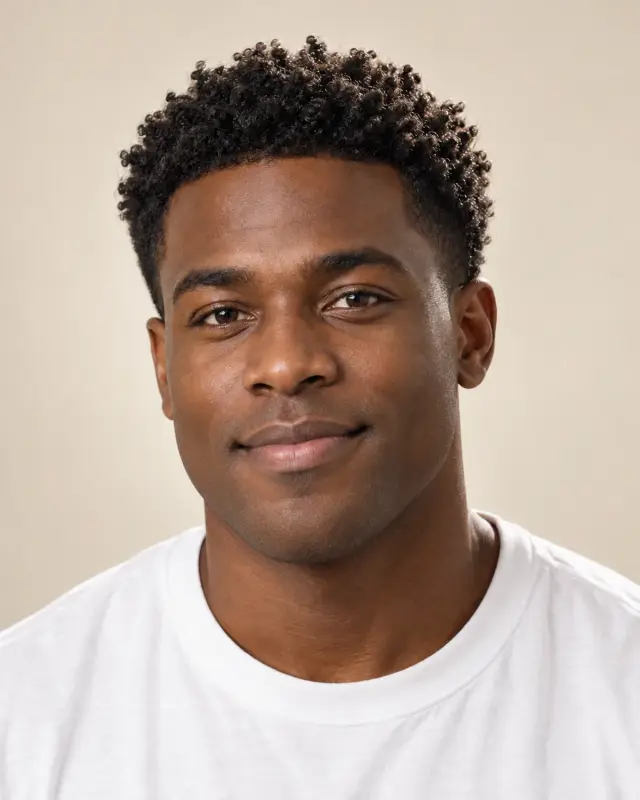
AI-created illustrations. Your preview will depend on your photo.
Beyond the preview
Take Your Clean Shave Preview to the Barber
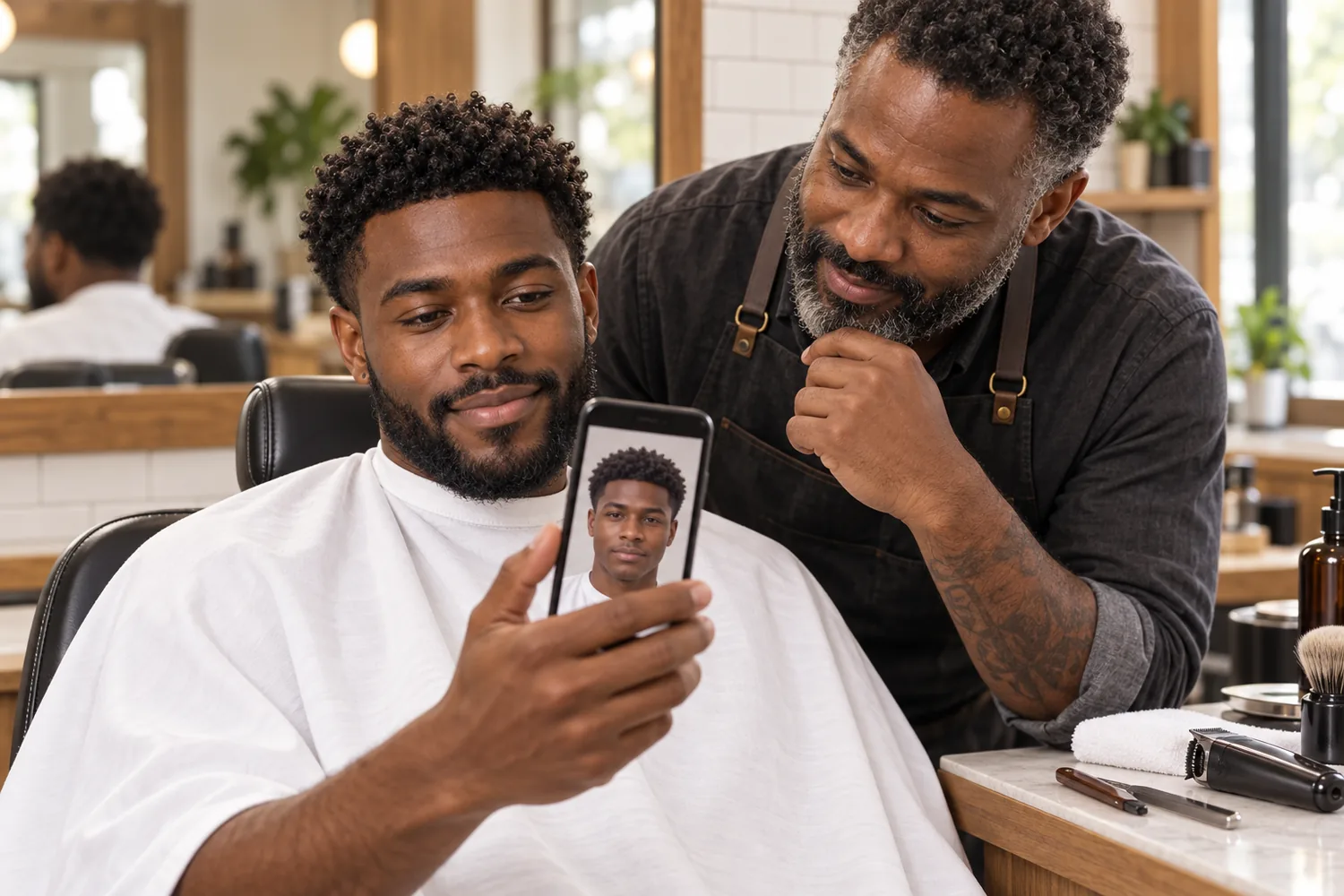
Save a preview and talk through these four points with your barber, or keep them in mind at your own mirror.
What Stays and What Goes
Say whether you want it all off, or to keep the mustache, a goatee or a line along the jaw.
Razor or Trimmer
Ask about a razor-close shave versus a short shadow if your skin reacts to shaving.
Taking It Off in Stages
Trimming to stubble first lets you get used to the change before it all comes off.
Upkeep at Home
Ask how often to shave or trim, and how to care for newly bare skin.
No Beard Filter Tips and Common Questions
Preview details, credits and photo requirements.
Upload a photo, choose Clean shave and select Remove beard. Compare the preview with your original or try another style. AI previews help you explore a look before you shave; they are not a picture of the real result.
New accounts receive free credits to try the tool. Generating previews uses credits; check the amount shown in the tool before generating. You can review additional credits on the pricing page.
The tool is designed to remove or shorten facial hair only, keeping your jaw shape, skin tone, haircut and background. Generative edits may introduce small differences, so compare the result with your original before deciding which preview to keep.
You can use it with stubble, short beards and full beards. The more a beard covers, the more of the jaw, chin and neck the AI has to estimate, so the outline underneath is an approximation. A clear photo with your neck visible gives it more to work with.
Choose Mustache only, Goatee only or Chin strap to preview shaving the rest while keeping that part. Trimmed to stubble keeps your whole beard at a much shorter length.
Clean shave is designed to remove visible hair on the upper lip, chin, jaw and cheeks while keeping natural skin texture. It is a photo edit, not a preview of a hair removal treatment. A photo without facial hair stays much the same; to add a beard instead, use the beard filter.
The preview shows freshly shaved skin in your photo's lighting. After a real shave, skin that was under a beard may look paler for a while, and razor bumps or a shadow can appear. The preview can't predict your skin or how your beard grows back.
Use a sharp, front-facing photo with even light and your jaw, chin and neck visible. Avoid hands on your face, scarves, high collars and heavy shadows under the chin. The tool accepts JPG, PNG and WebP files up to 10 MB.
Still have a question? Email us at support@haircolorchangeai.com.
Explore More Beard, Mustache and Hair Looks
Add facial hair, try a mustache or change the cut.

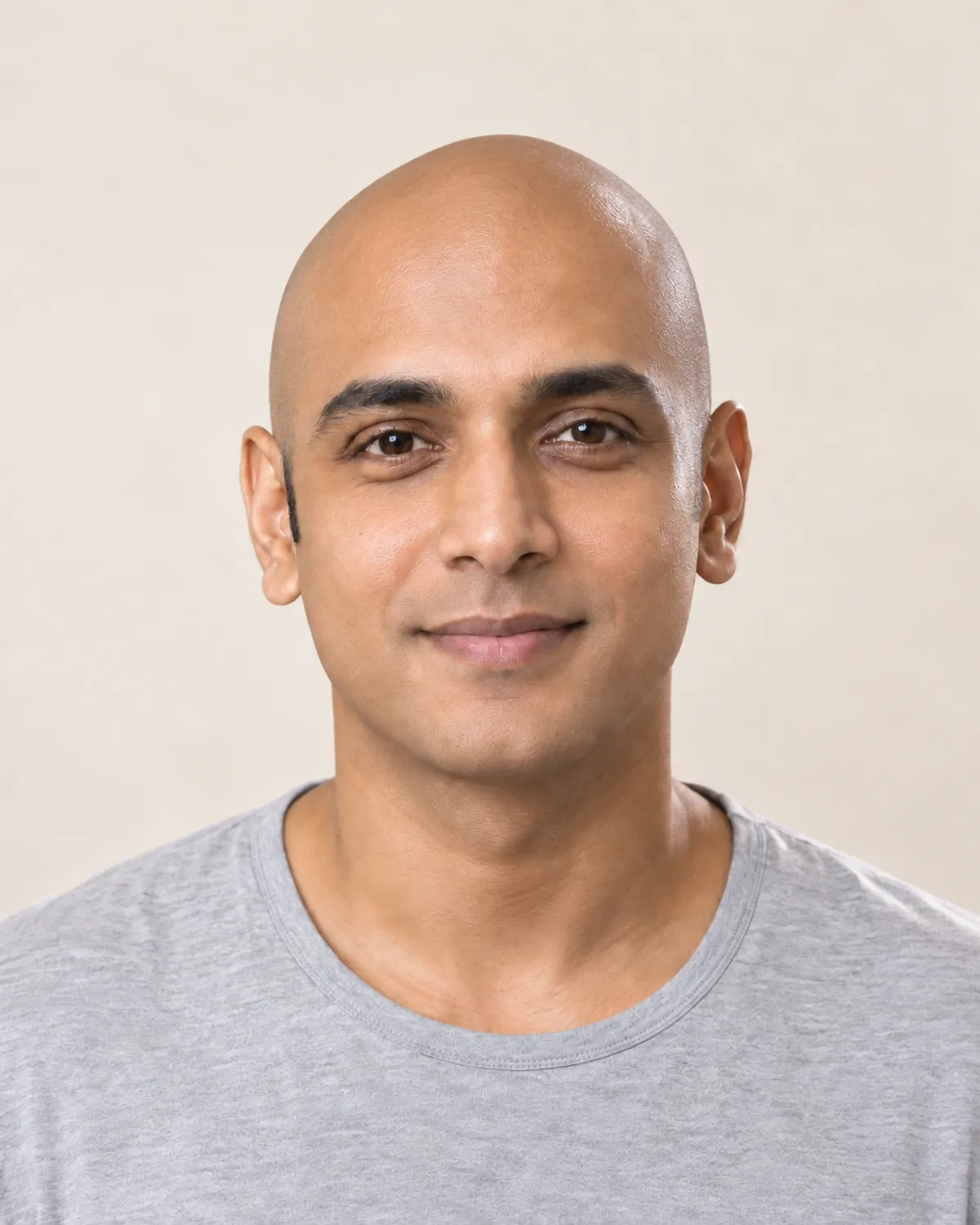
Try the No Beard Filter Online
Choose how much to shave, compare your preview and save a reference before you pick up the razor.
Free credits for new accounts · Previews use credits