Save 30% yearly

Hair Color Try On — Compare 4 Shades

Add one photo and try up to four hair colors on it. Compare them side by side, star a favorite and keep a runner-up to show your colorist.

No photo handy? Try a sample:

Try on hair colors

0 of 4 shades tried

Each shade you try is a new image: 5 credits. A full board of 4 is 20 credits.

Selected:Honey blonde

Designed to change hair color while preserving the rest of your photo.

5 credits per shade · Compare up to four previews

The four-shade board

Compare Four Hair Colors Side by Side

Explore broad color families, then compare nearby shades. Select any preview to load that shade into the tool above.

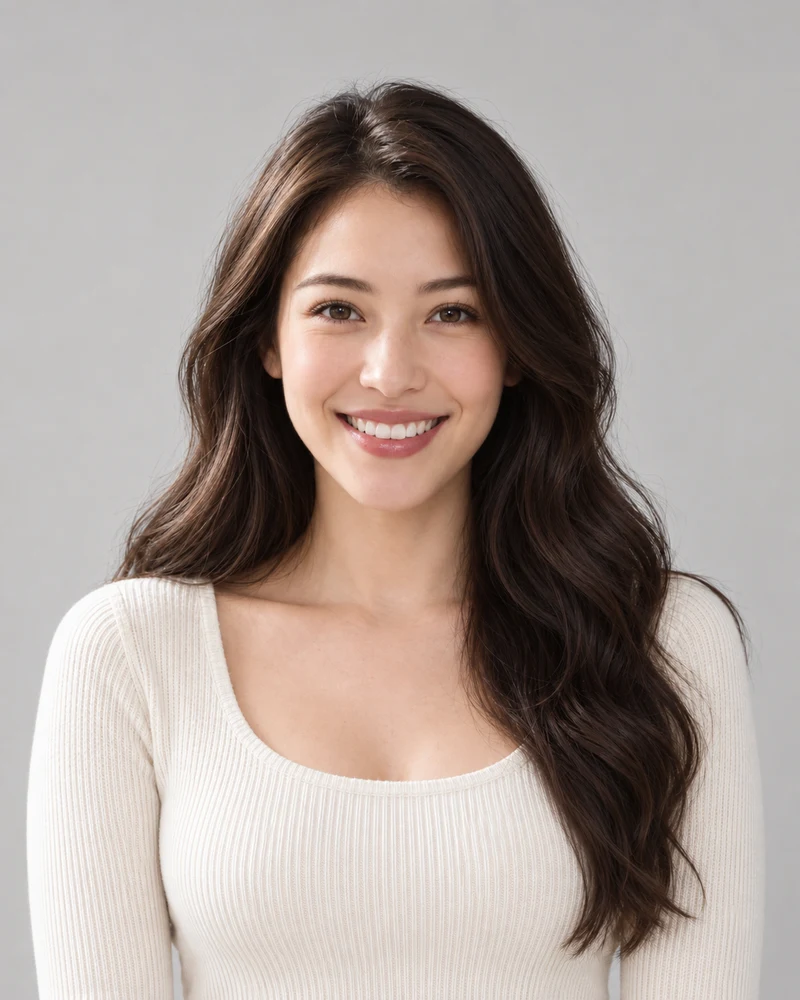
The approved female example model: original photo
Original

Four Color Families on One Photo

Compare light blonde, warm copper, deep black and soft pink. Start with the overall contrast before narrowing down a shade.

Illustrative AI previews. Each tab uses one model; these are color examples, not personal recommendations or customer results.

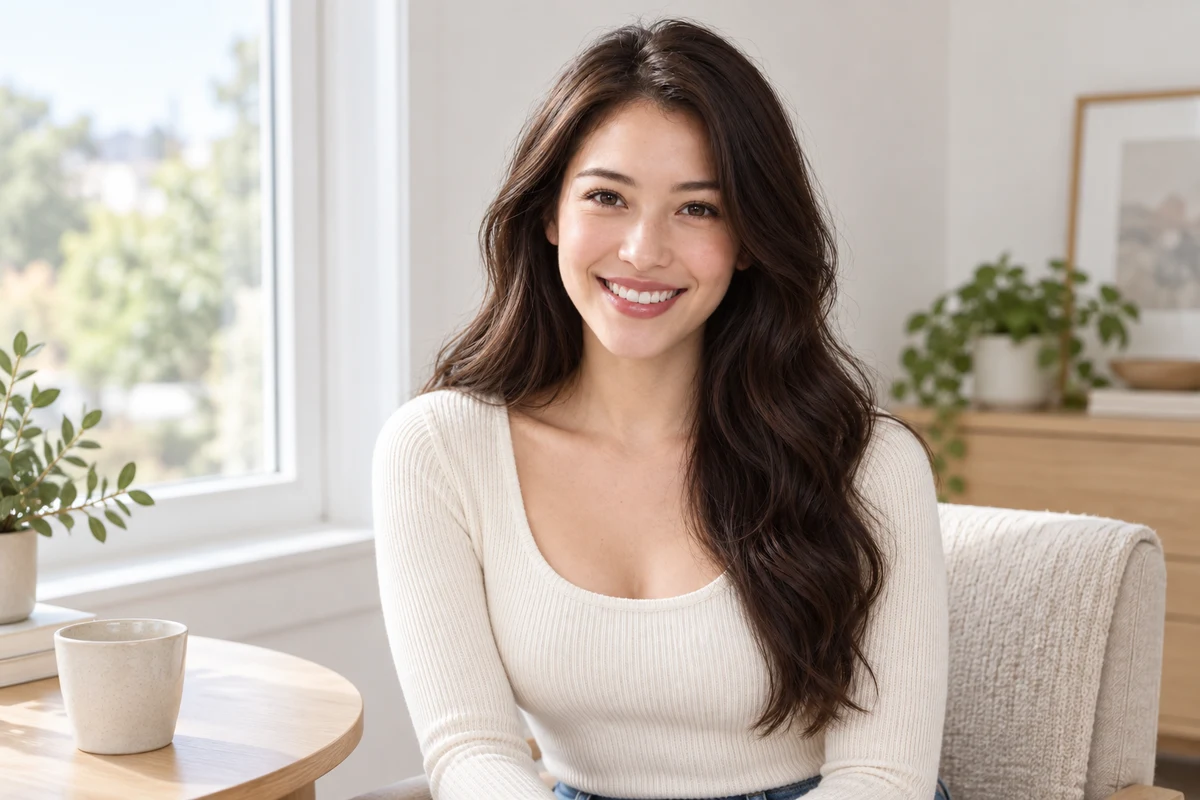
The approved female model preparing an evenly lit portrait beside a window, with her full hair visible
Soft daylight, visible roots and a clear view of the ends.

A better starting photo

Clear Photos for Hair Color Try On

Use one evenly lit photo for every shade. Visible roots, ends and texture give you a more useful starting point for comparing the previews.

  • Face soft daylight and keep your full hair outline in view.
  • Leave off beauty filters and strong color effects.
  • Use the same photo when comparing different shades.
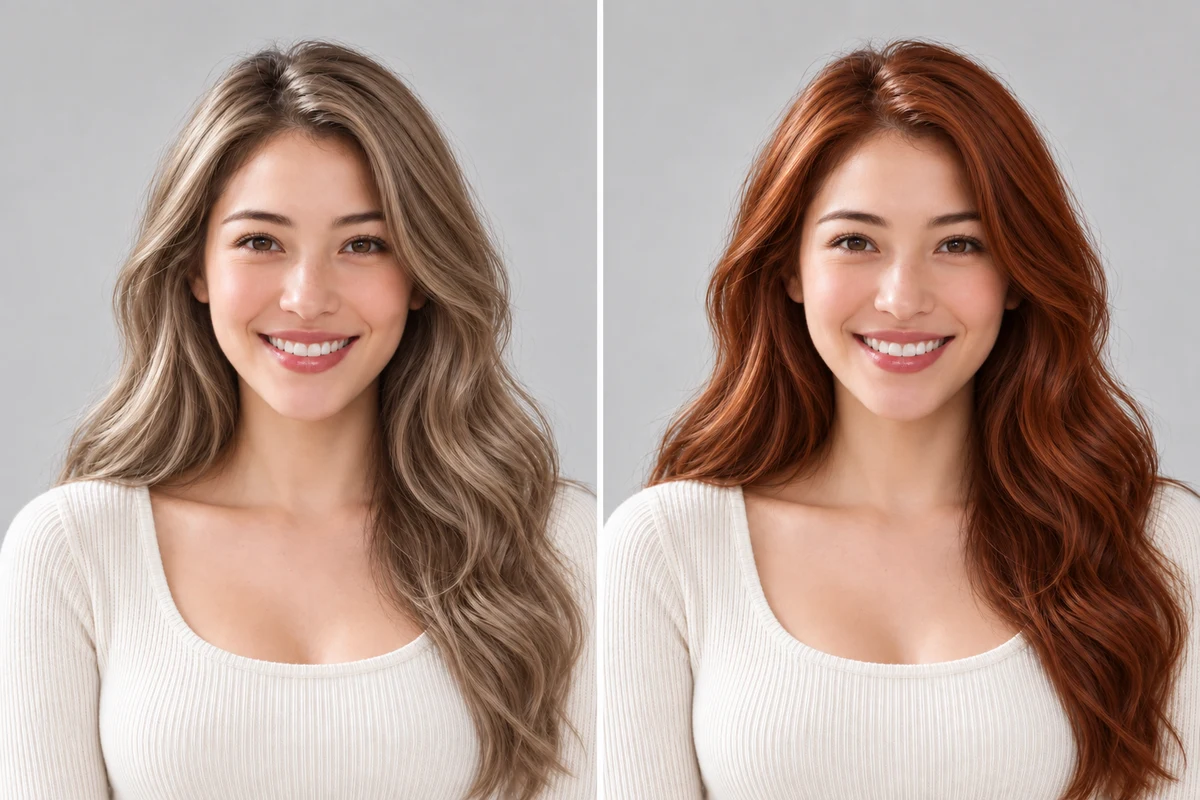
The same woman in the same light, cool ash blonde on the left and warm copper on the right
An illustrative warm-versus-cool comparison using the same model.

Look past the hair

Compare Warm and Cool Shades

Keep the source photo fixed as you compare shades. Look at the color beside your skin and brows, and check for small changes introduced by the AI edit.

  • Skin: compare warm and cool shades in the same light.
  • Brows: decide how much contrast you like with lighter hair.
  • Roots: compare the preview with your natural starting color.
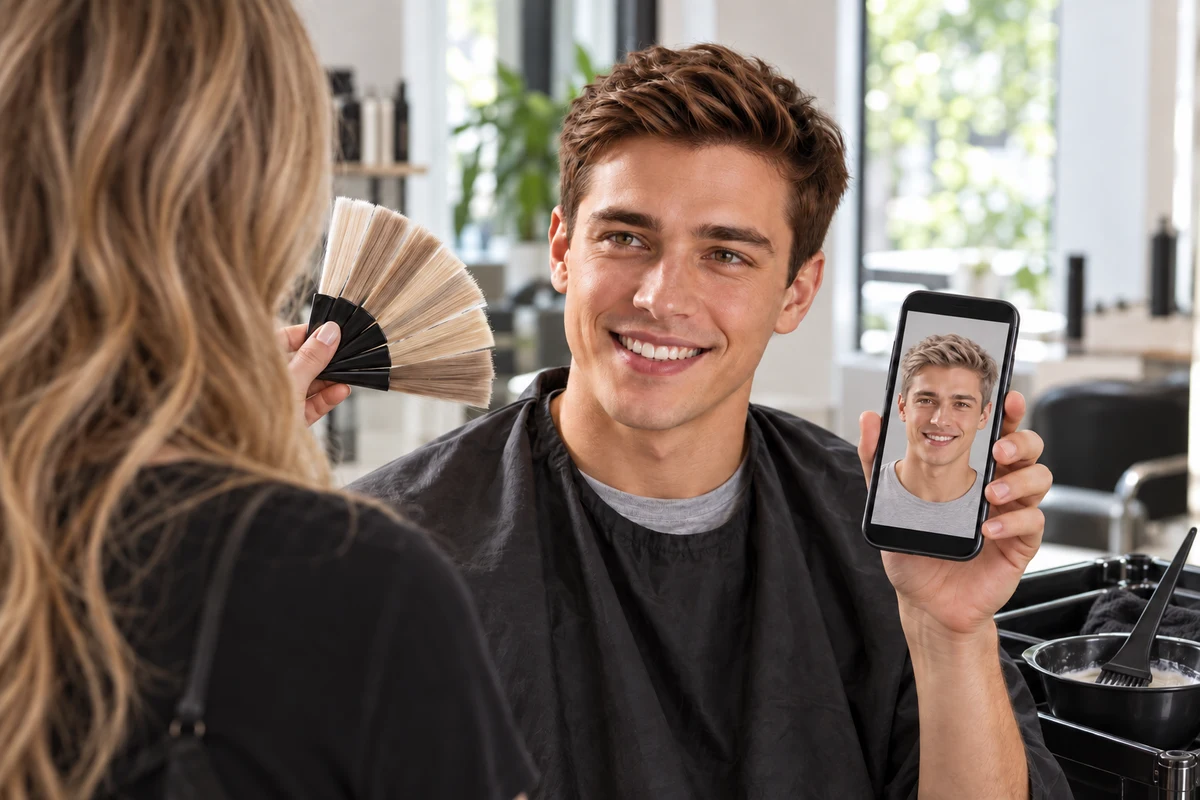
A man showing his colorist a photo of himself with a new hair color on his phone
Bring the preview, then refine it with a professional.

From preview to appointment

Hair Color Previews for Your Salon

Download your favorite and the runner-up and show both to your colorist. Two images say more than a shade name, and your colorist can tell you what is realistic from your starting color.

  • Mention past color or lightening; it changes what one appointment can do.
  • Treat the preview as a reference, not a guaranteed salon result.
  • Ask how often the shade will need a refresh or a toner.

Try On Hair Color Virtually in 3 Steps

One photo, up to four shades, one board to compare them on. It runs in your browser — no app to install.

1

Add one photo

Upload a clear, front-facing photo with your hair visible, or start with a sample portrait.

2

Try up to four shades

Pick a shade and tap Try. Each one is a new image that uses a few credits, and it lands on your board.

3

Compare, star, download

See them side by side, star your favorite, remove any you've ruled out and download the one to bring to your colorist.

Virtual Hair Color Try On FAQ

Credits, photos, accuracy — and what to bring to the salon.

Opening the tool, picking shades and browsing the examples is free. Each shade you try on is a new AI image, so it needs a free account and uses a few credits — the exact number is on the Try button. New accounts get free credits to start.

Upload a front-facing photo, choose a shade and generate a preview. The tool aims to keep your face, haircut and background while changing hair color. Compare the result with your original, as AI edits can introduce small differences.

The compare board holds up to four shades for one photo. Open a result to compare it with the original. To try a fifth shade, remove one from the board first.

The same shade on the same photo would use credits for a result you already have. If you pick a shade that's already on your board, the tool shows you that tile instead.

It's a realistic preview of the finished shade on your photo, not a promise of the salon result. The real outcome depends on your starting color, any past lightening and the condition of your hair — which is why it's worth showing your colorist the image.

The preview shows the end color, even when it's far lighter than your hair today. In real life, going from dark to very light often takes lightening over more than one session, so ask a colorist what's realistic for you.

Yes. Besides all-over shades, the Highlights tab has balayage, ombré, babylights and a money piece, and the Gray & silver tab has silver, salt and pepper and gray temples — useful if you're thinking of going gray.

This tool edits a photo rather than a live camera feed. Use the same source photo for each shade so you can compare the previews from a consistent starting point.

It runs in your phone's browser: upload a selfie, try your shades and download the ones you like. There's nothing to install.

Download the previews you want to keep before changing your photo. Choosing a new photo starts a new compare board; use the undo action if you cleared the previous board by mistake.

Still have a question? Email us at support@haircolorchangeai.com.

See Yourself in a Different Hair Color

One photo, up to four shades and one favorite to take to the salon.