Save 30% yearly

Brown Hair Filter — Find Your Shade

Explore six browns, from deep dark brown to cool mushroom. Try a shade on your photo and compare it with your original before choosing a change.

No photo handy? Try a sample:

Choose a Brown Shade

All 59 shades and custom colors

Selected:Chocolate brown

Use a clear photo with your full hair visible. Check the preview against your original.

6 brown shades · Your photo, your choice · Credits shown before generation

THE BROWN PALETTE

Six Brunette Shades on One Photo

Start with the depth and tone you like. Select a shade to see its character, then preview it on your own photo.

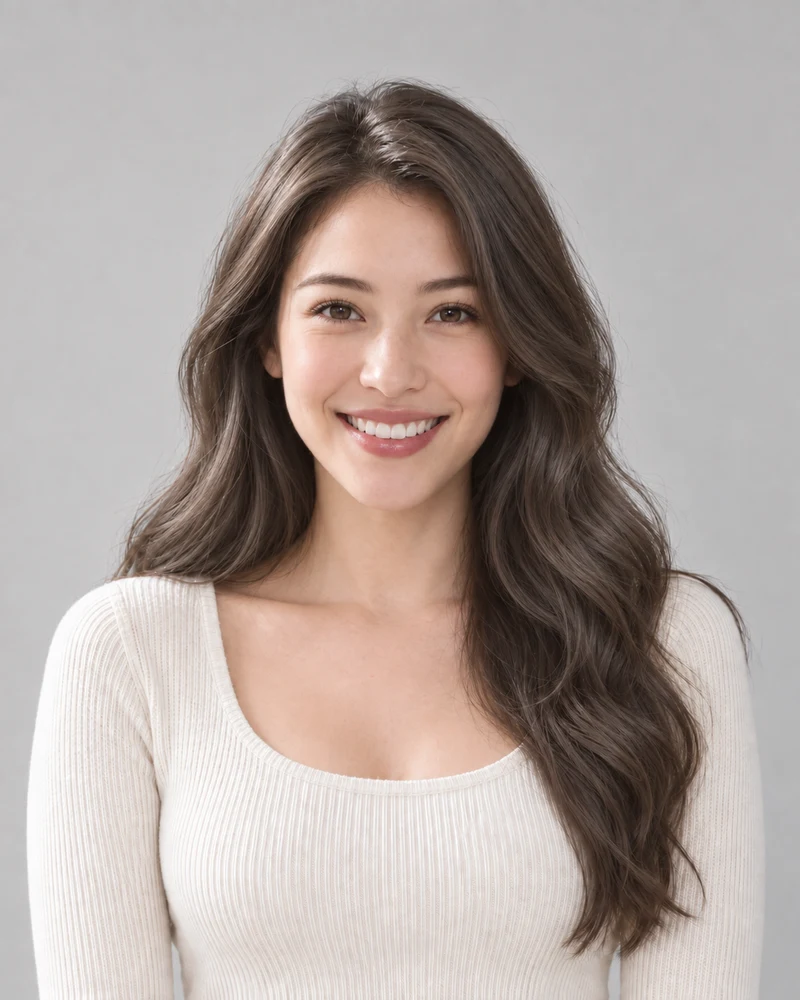
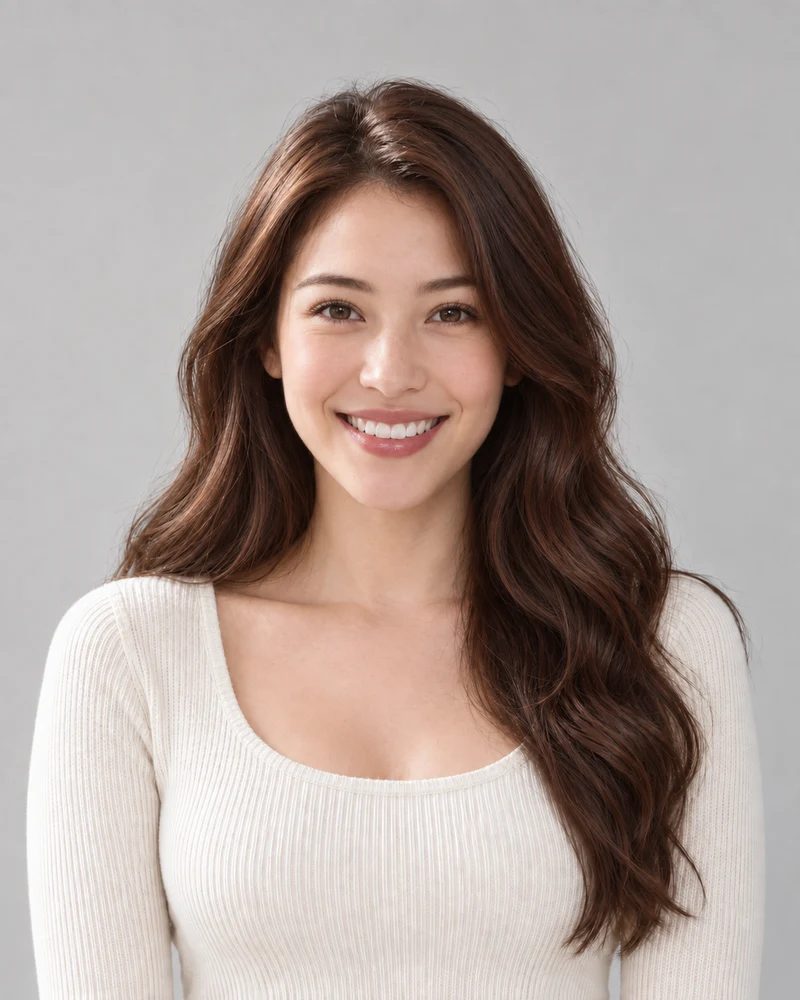
The approved female model with her original dark brown waves

Original

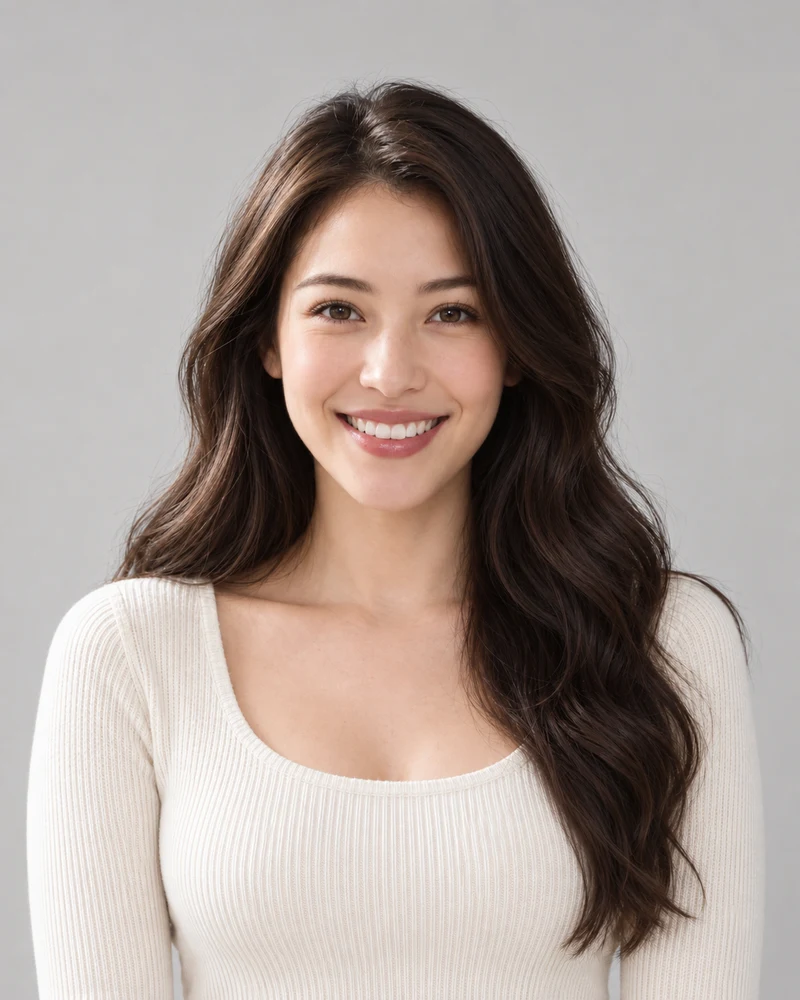
The same female model previewing Chocolate brown with matching pose and lighting

Chocolate brown

AI examples on one model. Your preview depends on your photo; it is not a prediction of a salon result.

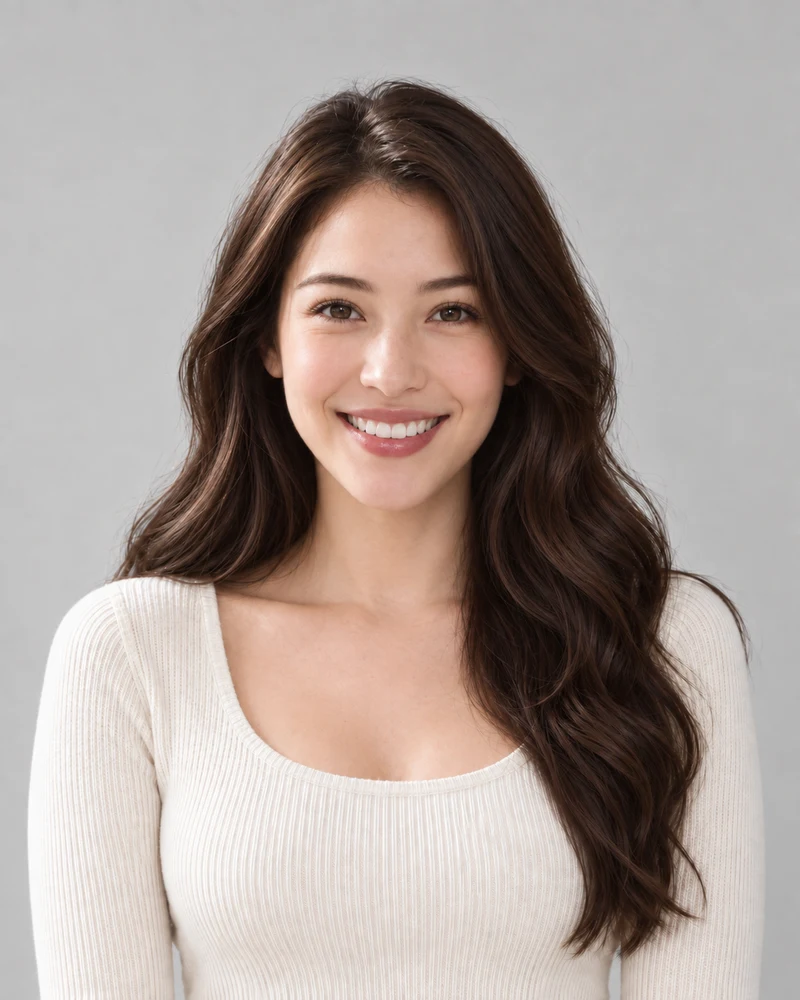
Chocolate brown

A rich, warm brown with a deeper appearance than chestnut or caramel. Compare it with your original to judge the change.

Compare: chocolate and dark brown to judge how much warmth you want.

Select a shade to update the palette above.

Shade depth and tone at a glance; your starting color can be different.

01 · DEPTH AND TONE

Brown Hair by Depth and Tone

Compare brown shades by depth and by warm, neutral or cool tone. Select a shade here to update the comparison and the tool above.

  • Dark brown and chocolate are deeper options; light brown and caramel create a lighter direction.
  • The change depends on your starting color. These labels describe the selected shades, not an analysis of your hair.
A close crop of Chestnut strands from the same model portrait
Chestnut
A close crop of Mushroom brown strands from the same model portrait
Mushroom brown
Matching crops from the same model, with no added color filters.

02 · A CLOSER LOOK

Warm and Cool Brown Tones

Chestnut brings reddish-brown warmth; mushroom leans toward a muted gray-beige. Matching crops make the difference easier to see in the strands.

  • Compare both browns on the same photo before judging the tone.
  • Your preference matters; skin tone alone does not decide the result.
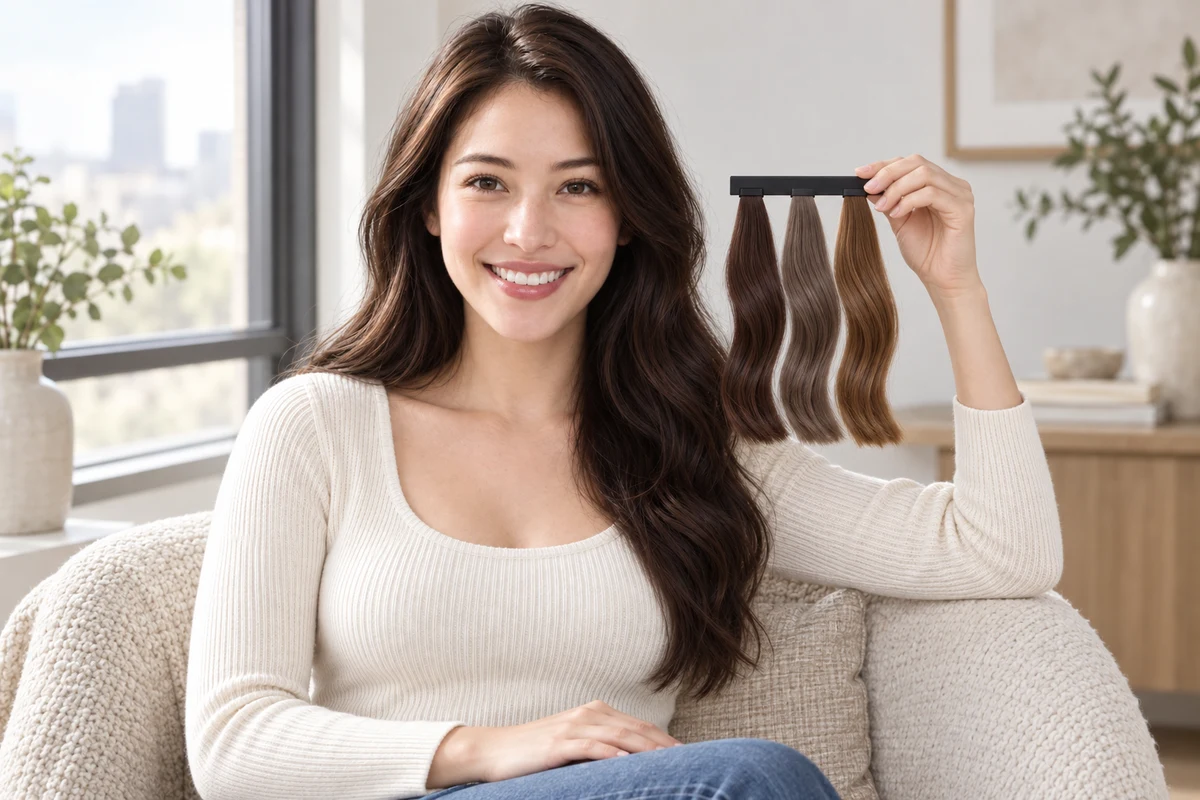
The same woman comparing chocolate, mushroom and caramel brown hair swatches beside her natural hair in indirect daylight
An AI illustration of comparing physical color swatches in daylight.

03 · BEFORE YOU DYE

Preview Brown Before Dyeing

Compare a saved preview with your original under consistent viewing conditions. In person, look at physical swatches beside your hair in indirect daylight.

  • A screen preview and a physical swatch are different references; neither guarantees a dye result.
  • Tell your colorist about any previous lightening or color.

Your Brown Preview in Three Steps

One photo, one selected brown, and an original to compare with.

1

A Clear Starting Photo

Upload an evenly lit portrait with your hair fully visible, or choose a sample.

2

Your Selected Brown

Choose one of six browns. Review the credit cost before generating your preview.

3

A Side-by-Side Decision

Compare the result with your original and download a reference to keep.

Brown Hair Filter Details

Photo tips, shade choices and what to expect from a preview.

Upload a portrait, select a brown shade and generate a preview. Use the result comparison to check the change against your original.

Chocolate, chestnut and caramel lean warm; mushroom brown is cool; dark and light brown sit near neutral. Try a warm and a cool brown on the same photo rather than treating a skin-tone label as a rule.

The preview can show a darker target on a light or previously colored photo. It does not assess your hair's history or condition; ask a colorist how a darker shade will take and how it could be changed later.

A preview shows the overall shade on your photo; it can't tell how gray strands will take dye in real life. If you have gray, mention it to your colorist and ask how different browns would blend or cover it.

Pick dark brown or chocolate brown to preview a subtle change on very dark hair. The difference can look small on screen, so compare it with your original in even light.

The edit aims to change hair color while retaining your appearance. AI may alter small details, so compare your face, brows, hairline and texture with the original.

This brunette filter edits a still photo instead of a live camera feed, so you can compare the result with your original and save it. Lighting and image quality still affect how the shade reads.

Browsing shades is free. Photo generation uses credits; check the amount shown on the generate button and your account balance before starting.

Upload a male portrait or choose the male sample. Brown shades can look subtle on dark hair, so compare the result with your brows and facial hair.

These six options are overall brown shades. Use Highlights for caramel pieces or balayage on a brown base, and Hair color simulator to explore a custom depth and tone.

Still have a question? Email us at support@haircolorchangeai.com.

Your Next Brown Starts with a Photo

Choose a brown shade and see a preview before deciding on a change.