
Your virtual bangs preview
Bangs Filter — Try Before You Cut
Preview curtain, wispy, blunt and more on your photo. Compare the shape before choosing your next cut.
No photo handy? Try a sample:
Choose Bangs for Your Photo
Selected:Curtain bangs
Designed to reshape your fringe while keeping the rest of your look.
6 bangs styles · Straight, wavy and curly hair · Free credits for new accounts
The fringe edit
Explore 6 Bangs Styles on Your Photo
Compare the shape, coverage and styling of each fringe. Five women's looks share one portrait; the men's fringe uses a separate example.
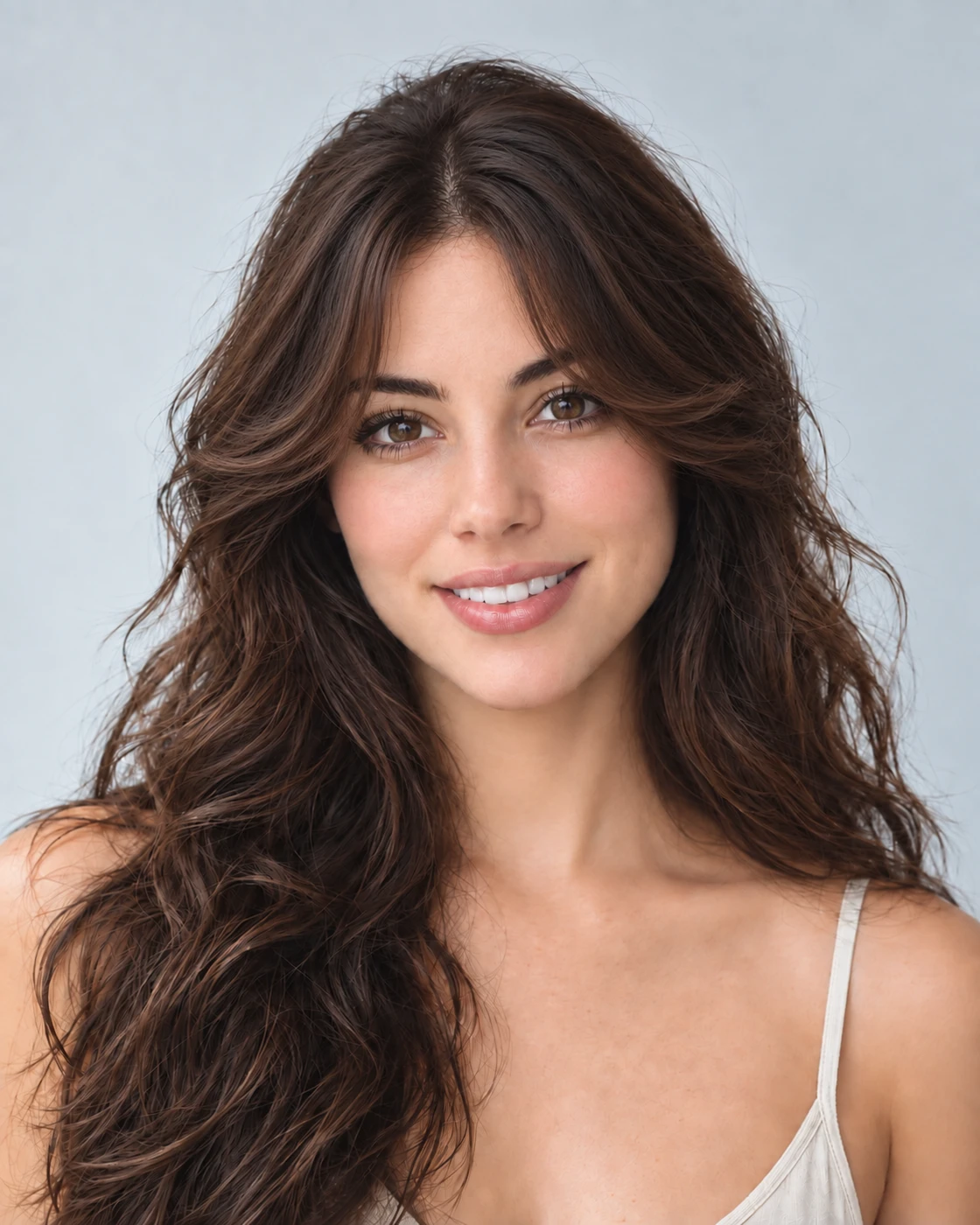
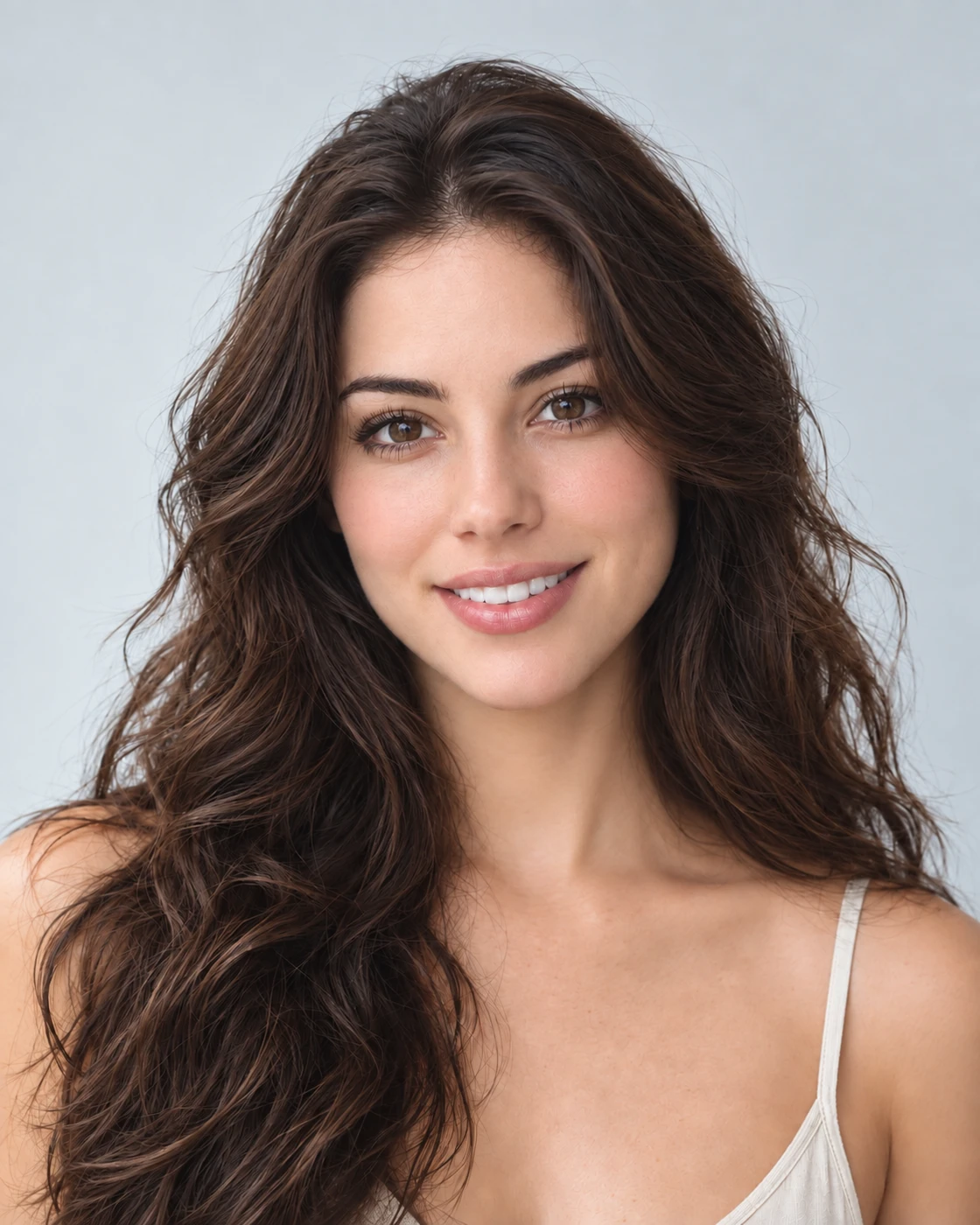
Curtain bangs
Soft, open, easy to imagine on you.
- The shape
- A center part with longer, face-framing sides.
- Forehead coverage
- An open center, with softness around the temples.
- Everyday styling
- Shape the part and ends; longer pieces leave room to tuck away.
Bangs Before & After on Different Hair Types
Compare AI-created bangs previews on short hair, natural curls and a chin-length bob. Drag each slider to see the change.
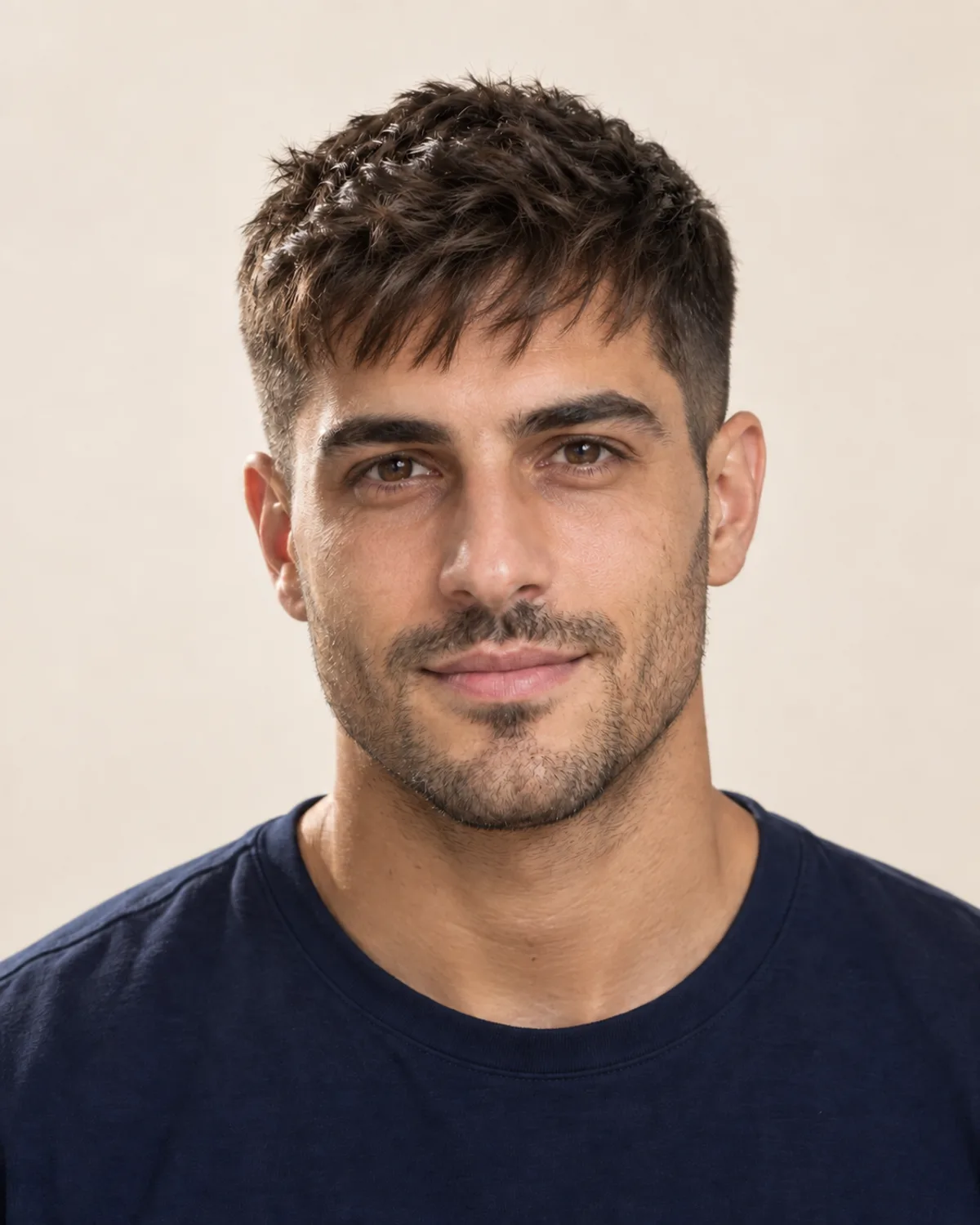
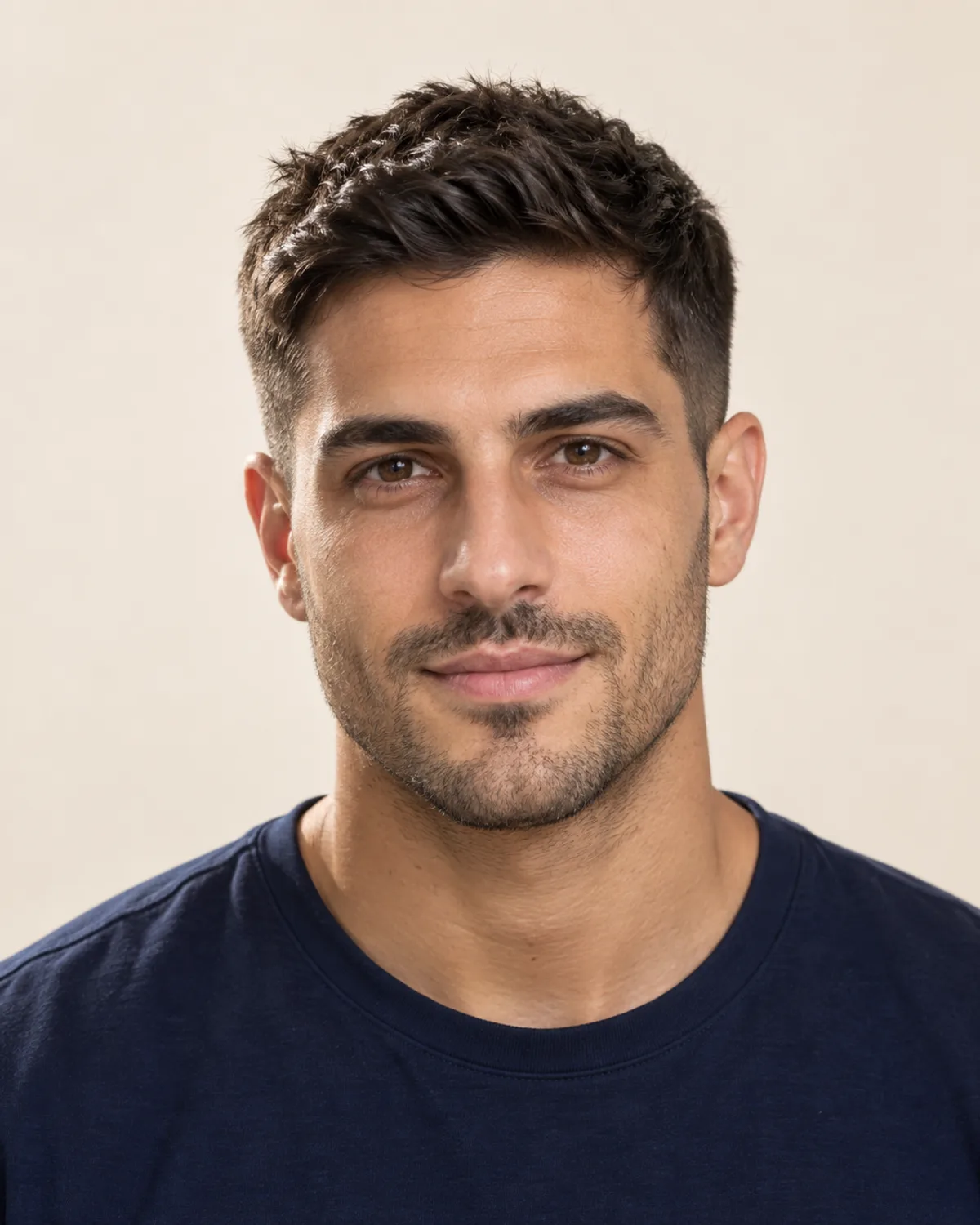
Textured Fringe for Men
A short, piecey fringe softens the front of the haircut. Compare its shape and forehead coverage.
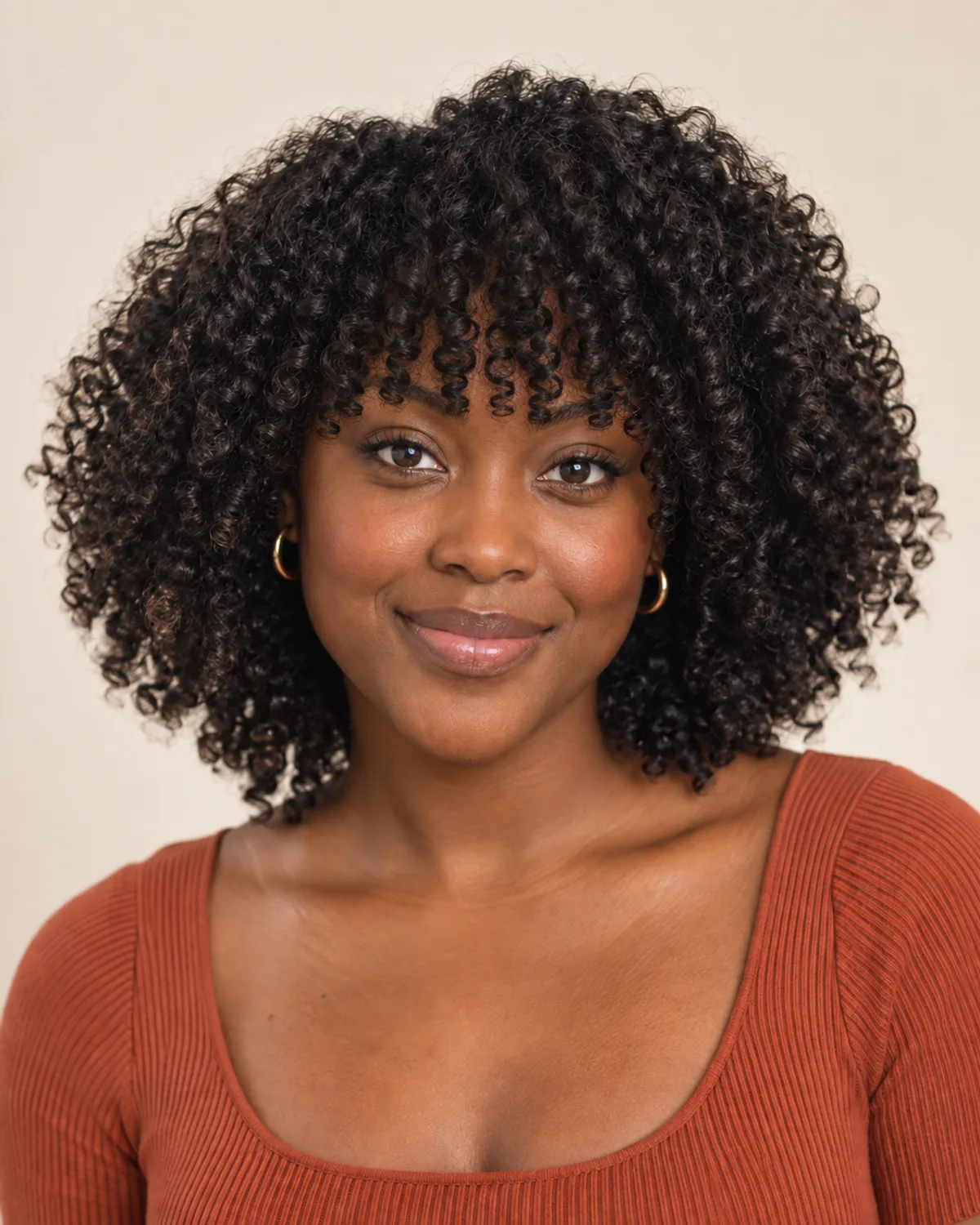
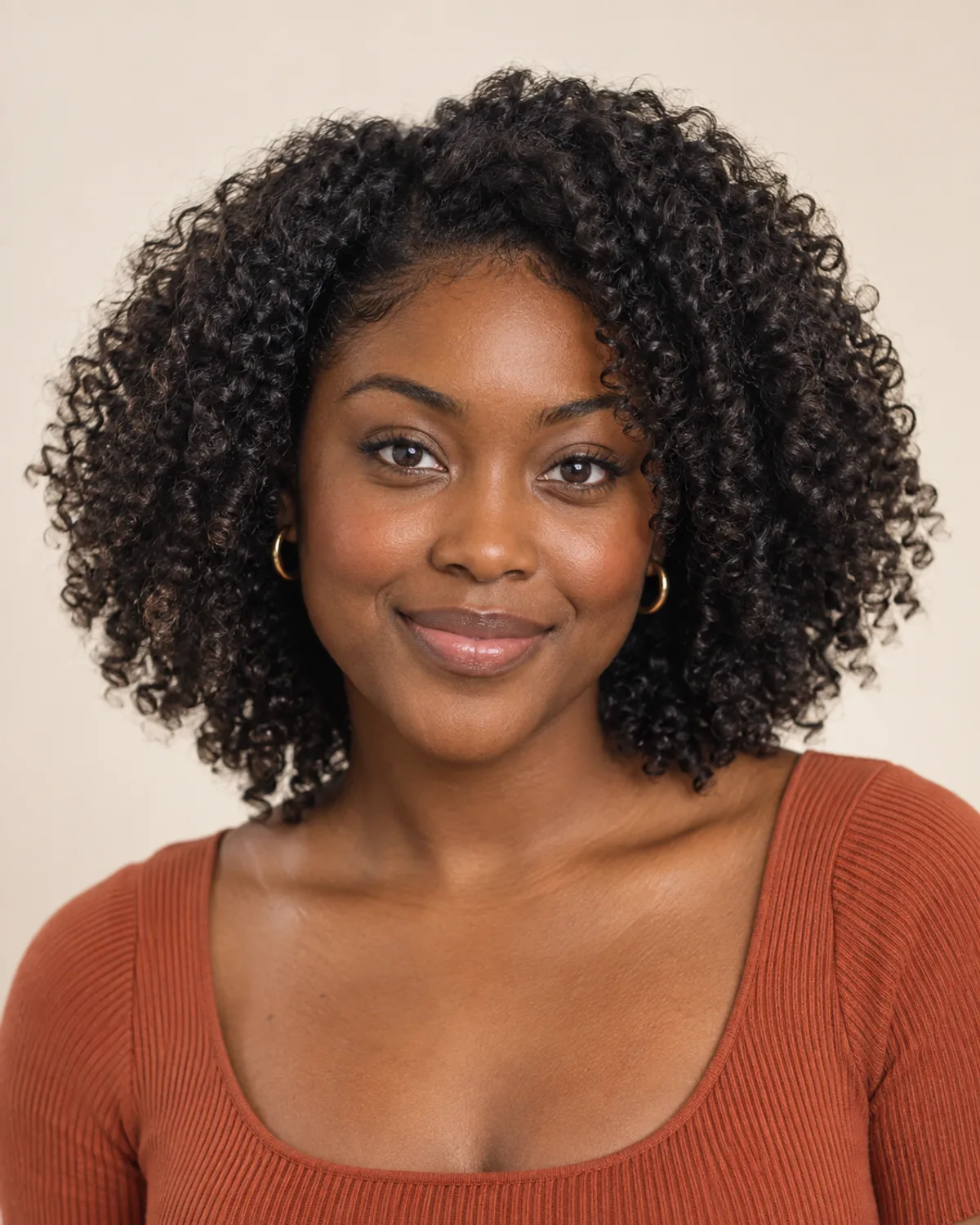
Bangs on Naturally Curly Hair
A curly fringe adds shape around the forehead. Notice the volume and room for curls to spring up.
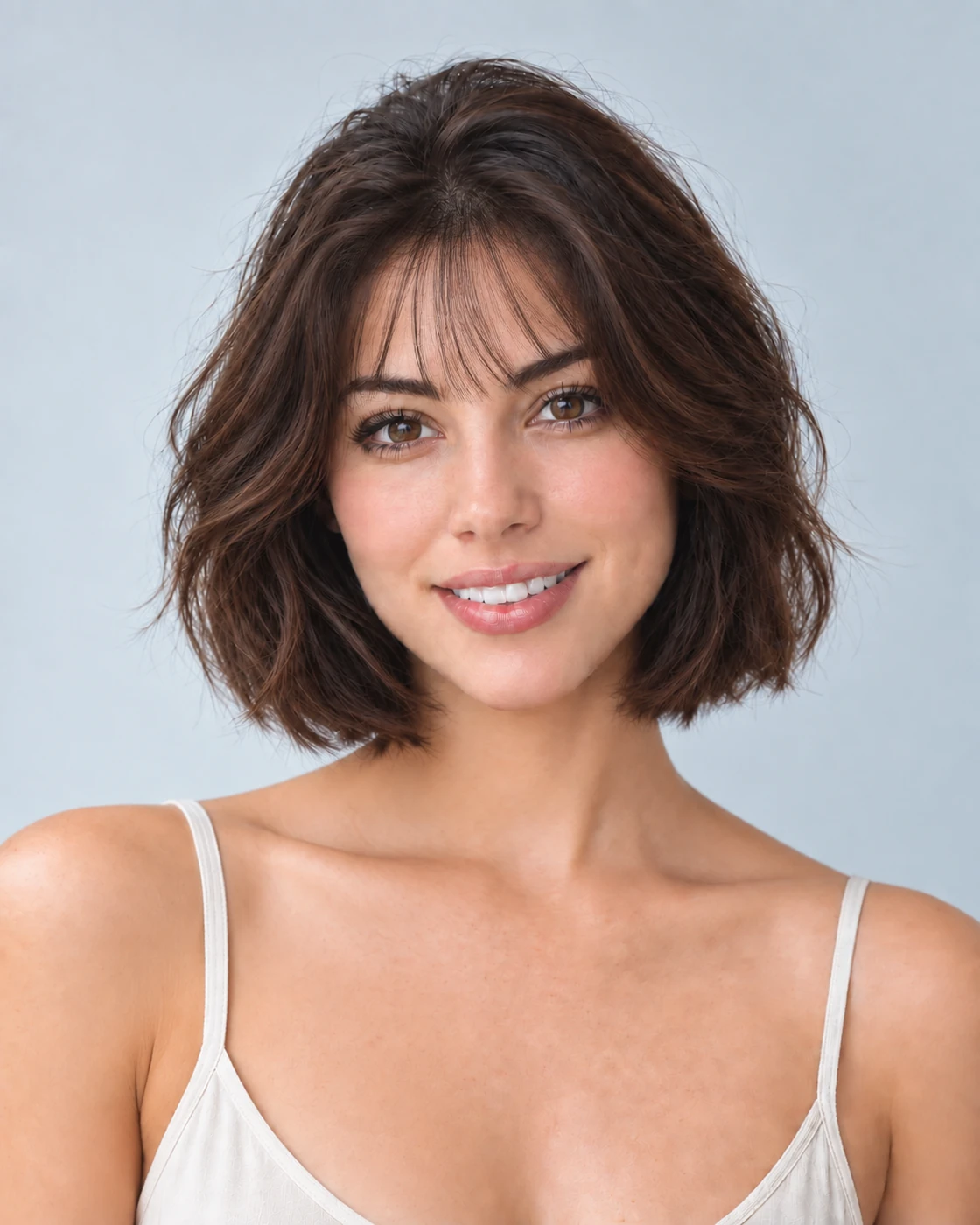
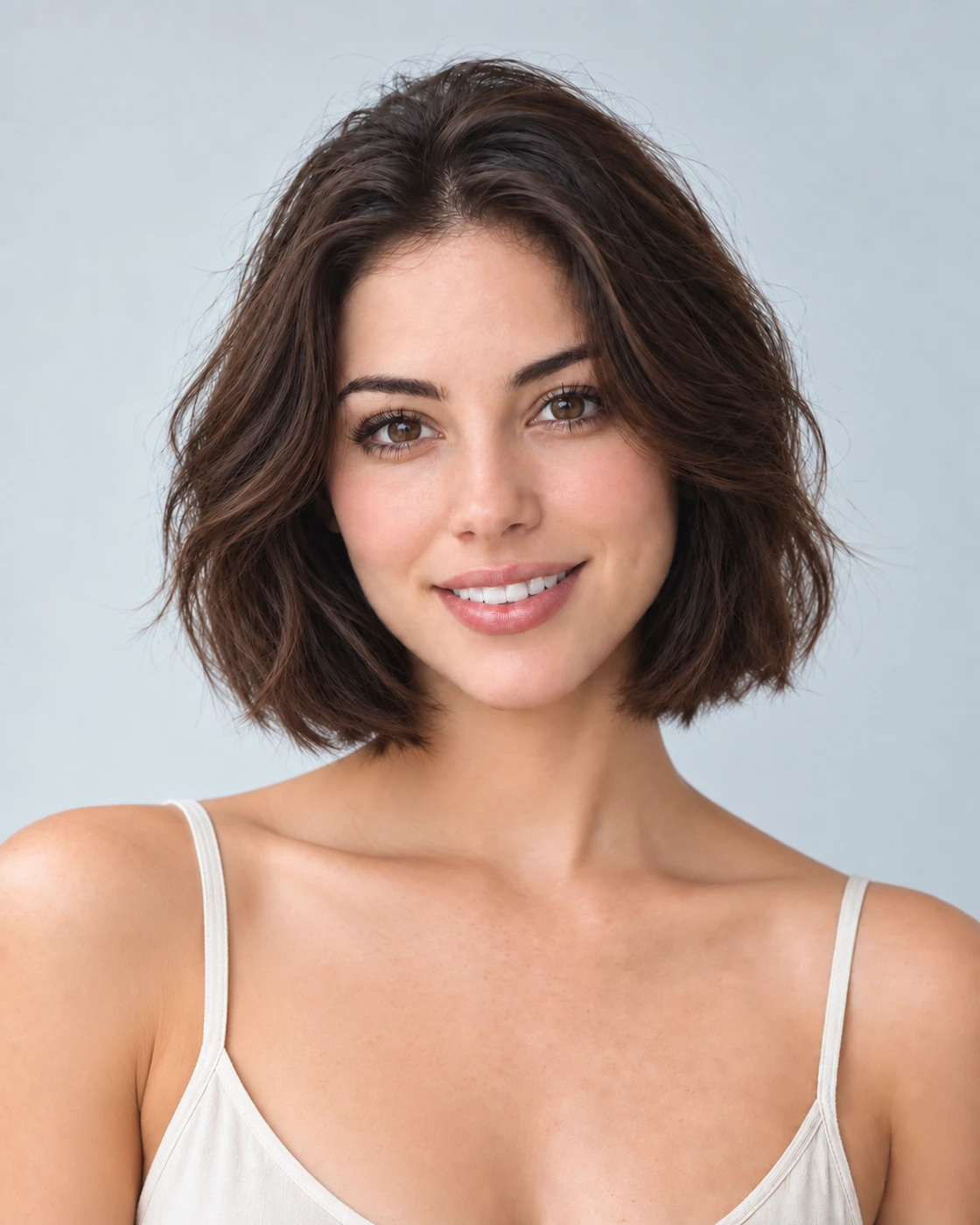
Wispy Bangs with a Short Bob
A light fringe frames the eyes while keeping the chin-length bob silhouette.
Choose Your Bangs with 5 Simple Checks
Your texture, hairline and daily routine all influence how a fringe sits. Check these details before choosing a cut.
Straight, wavy and curly hair create different fringe shapes. Look at your hair when dry, and leave room for waves and curls to spring up.
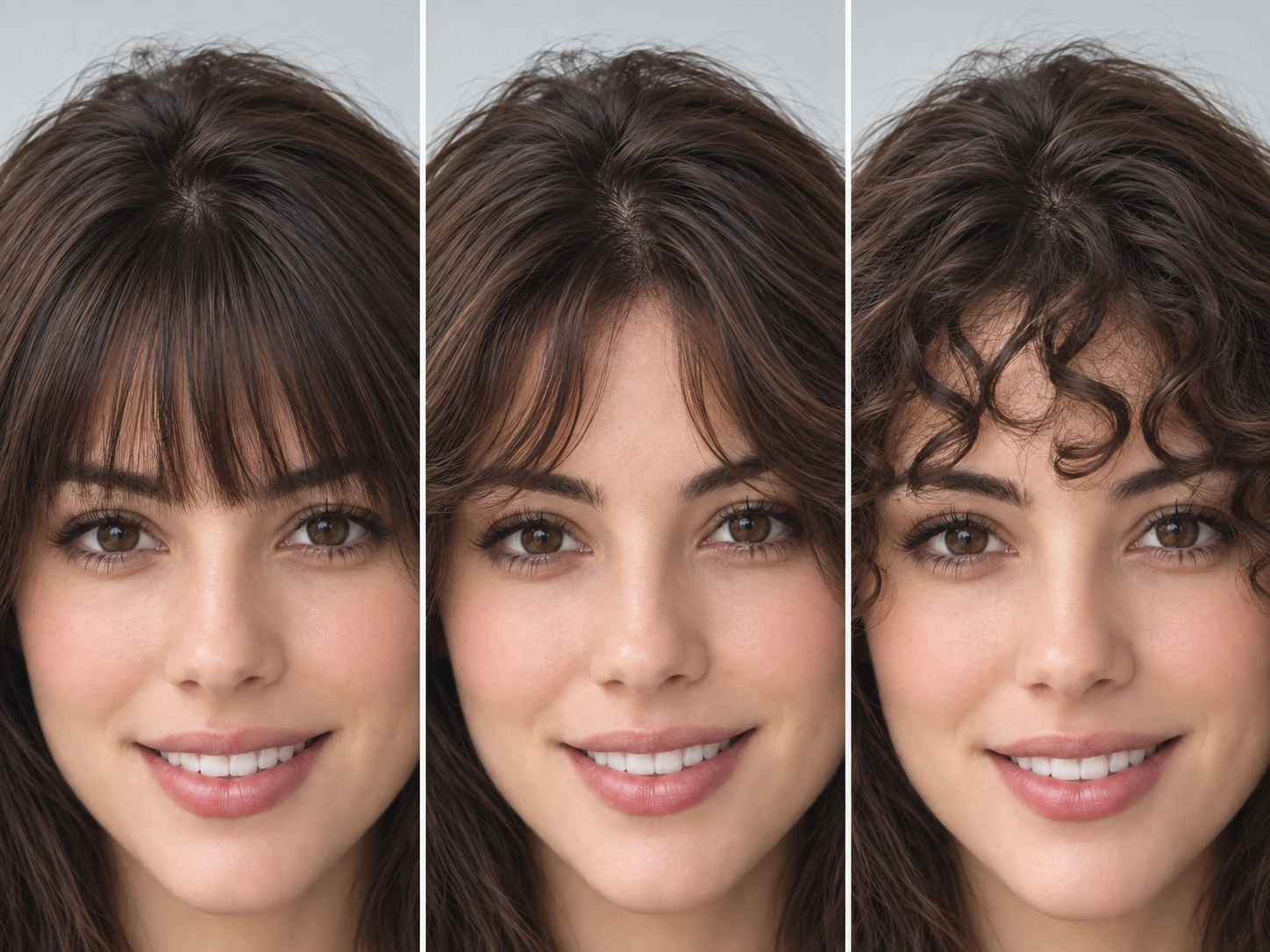
One idea, three textures. Notice how the fringe falls, bends or curls.
Lift the hair at your forehead and check which way the roots grow. A natural part or cowlick can help guide a curtain or side-swept fringe.
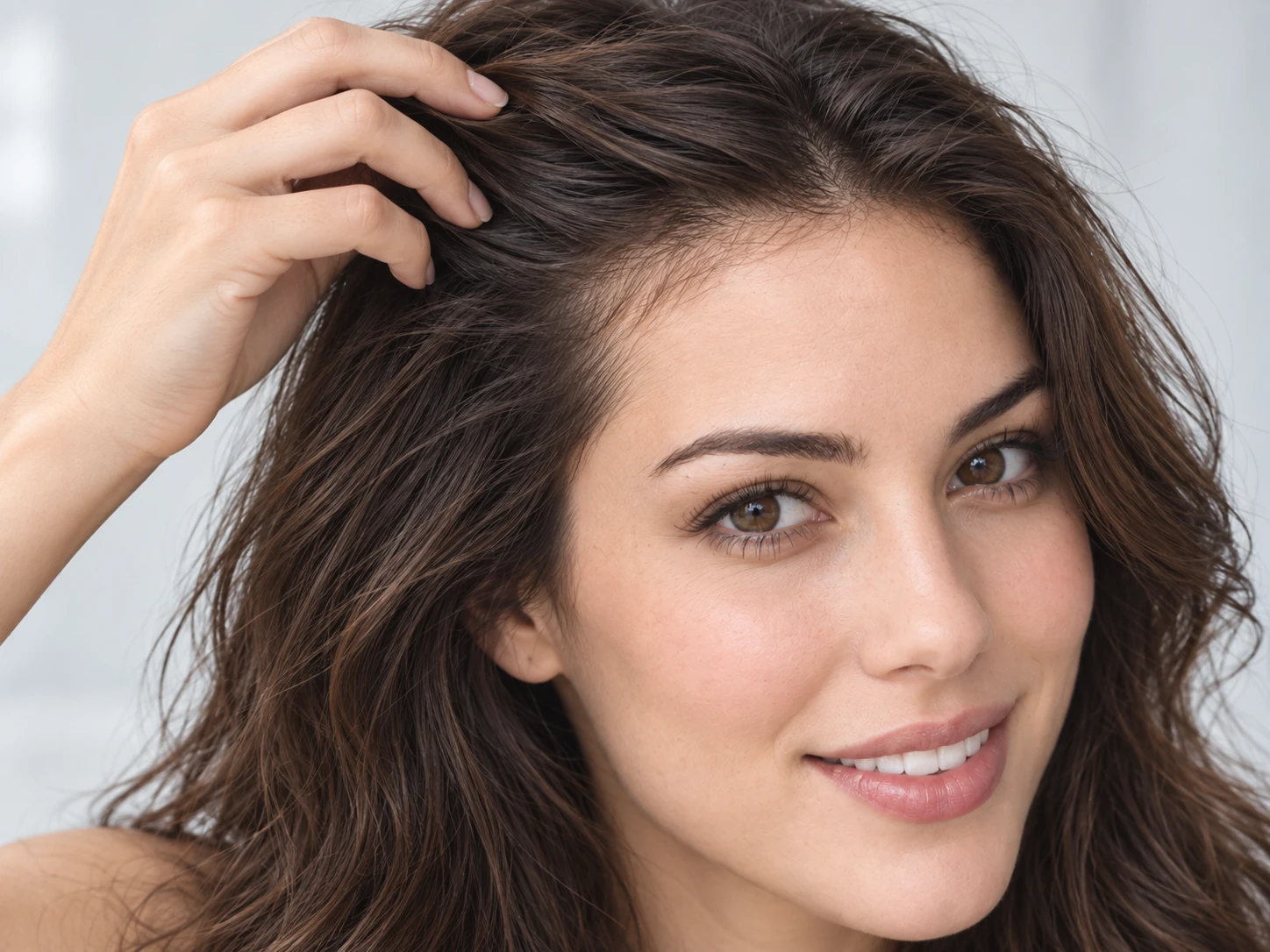
Lift the front section to see the roots before deciding where your fringe should part.
A precise, brow-skimming fringe needs more frequent reshaping. Longer curtain bangs leave more flexibility between salon visits.
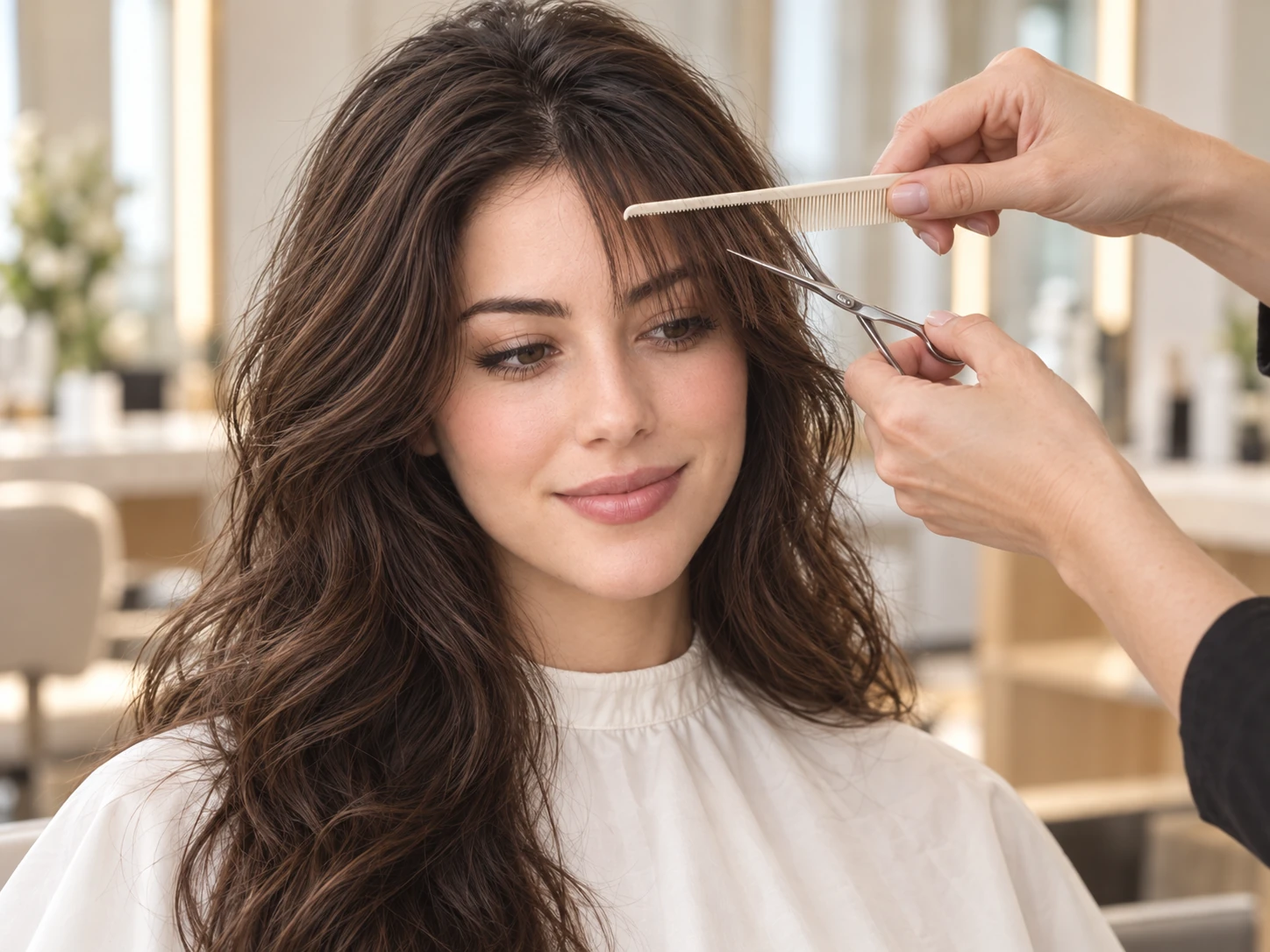
Small trims keep a defined fringe in shape. Discuss upkeep when you choose the length.
Consider the styling you enjoy doing. A round brush and a quick blow-dry can shape a fringe; a longer, softer cut gives you more ways to wear it.
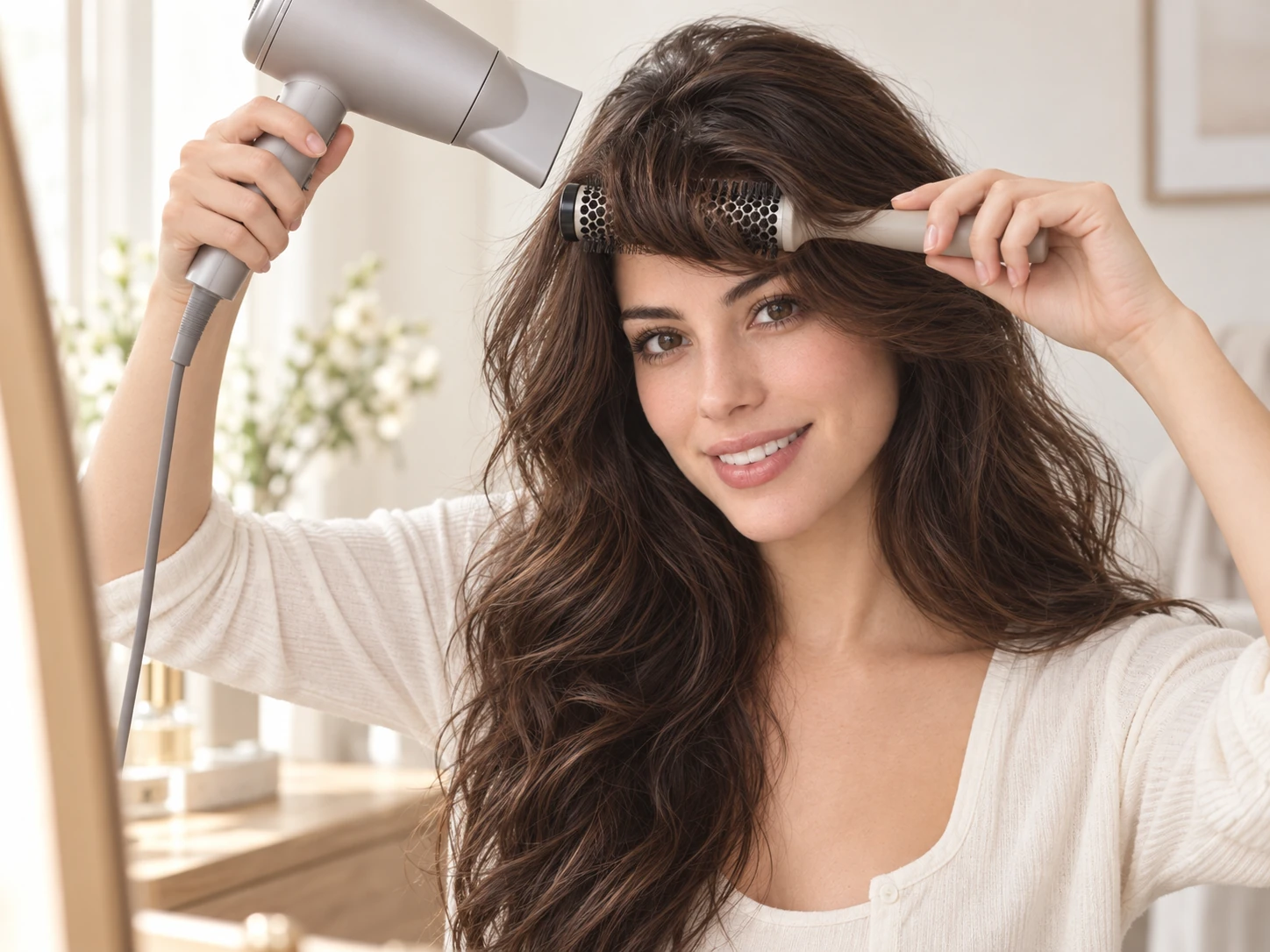
Choose a look that fits the time and tools you want to use in the morning.
Think about how you like hair to feel against your forehead. Wispy or parted bangs offer lighter coverage, with space between the strands.
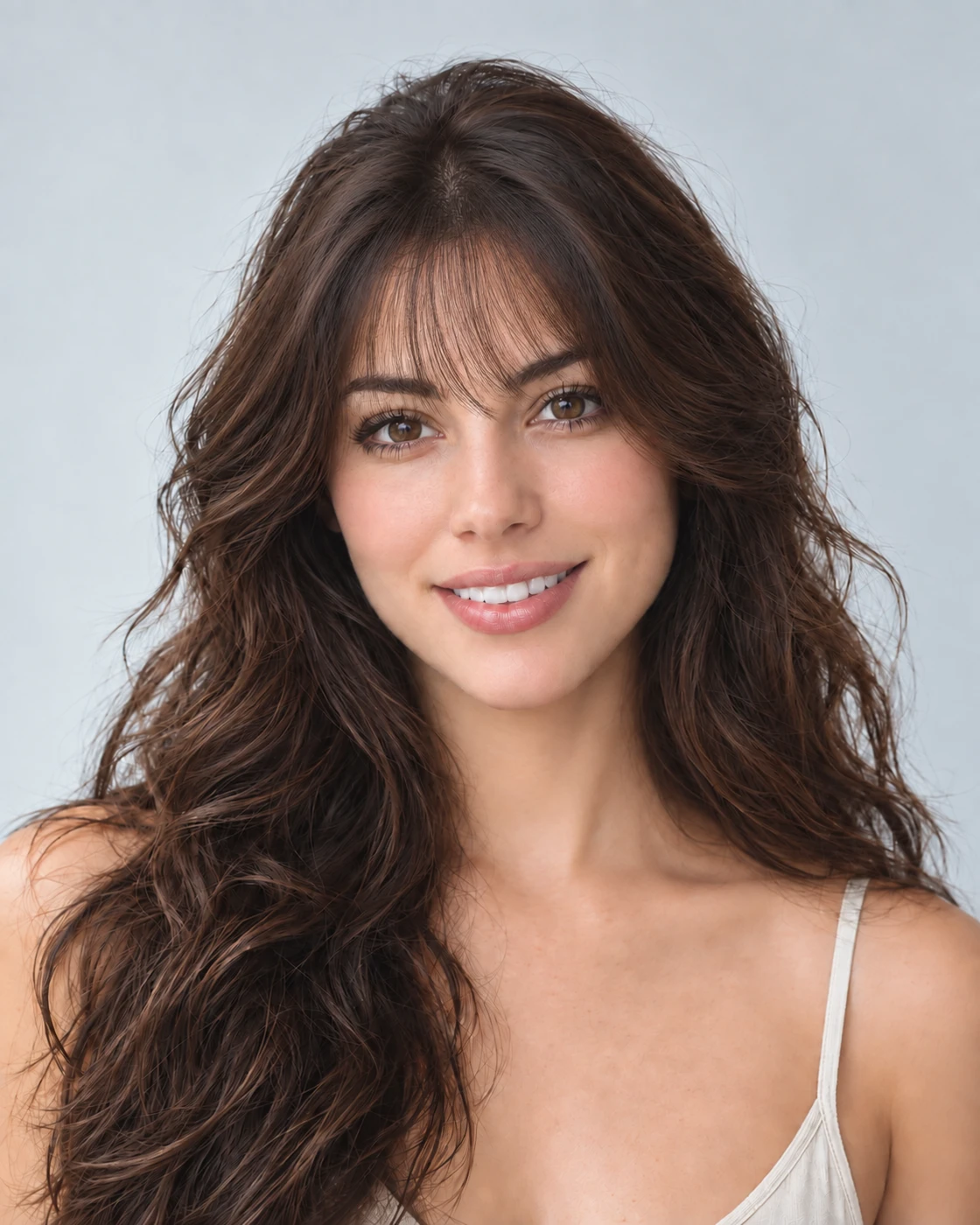
Look at the spaces between strands: density changes how much of the forehead is covered.
How to try on bangs
Preview Your Bangs in 3 Simple Steps
Upload a photo, choose a style and compare your preview.
Step 01
Start with a Clear, Well-Lit Photo
Use a front-facing portrait with even light and a visible forehead. You can also start with a sample photo in the tool.
- Even light, a visible hairline, no hats.
- JPG, PNG or WebP · Up to 10 MB

Step 02
Choose the Bangs You Want to Preview
Choose from six styles, including curtain, wispy and blunt bangs. Generate a preview to see the fringe on your photo.
- Curtain, wispy, blunt and more.
- Select a style, then generate your preview.

Curtain bangs

Wispy bangs

Blunt bangs
Step 03
Compare Your Look and Save a Favorite
Compare your preview with the original, then download a result to keep or discuss with your stylist.
- Compare your face, hairline and fringe shape.
- Save a result, or try another style.
Before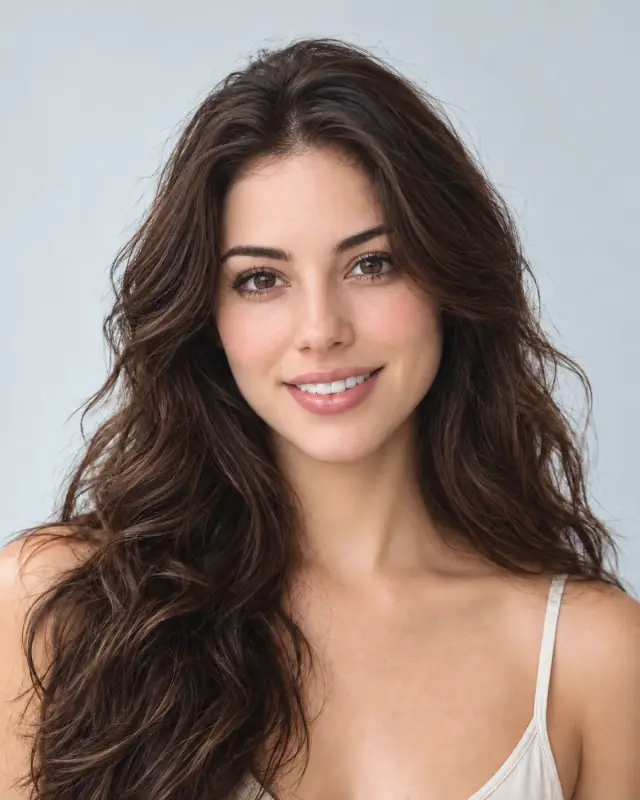 After
After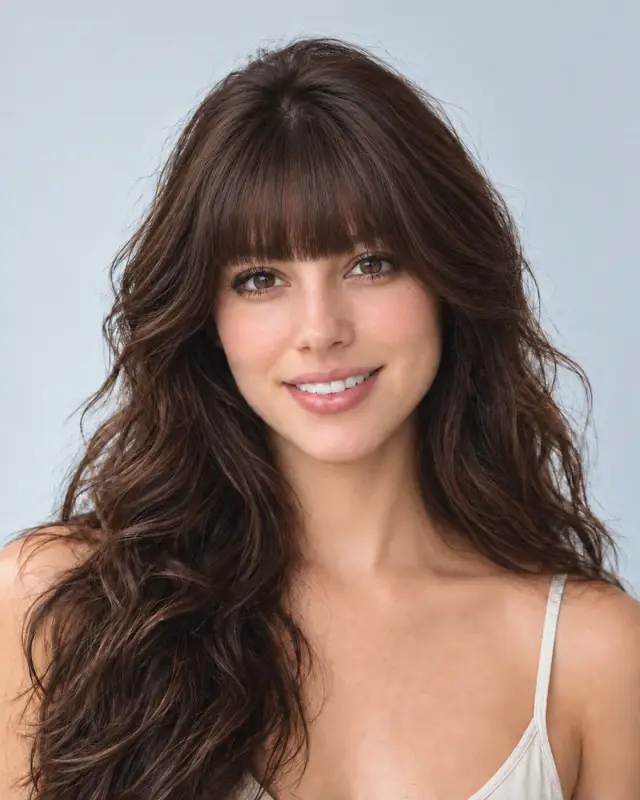
AI-created illustrations. Your preview will depend on your photo.
Beyond the preview
Bring Your Bangs Preview to the Salon

Save a preview and discuss these four details with your stylist to adapt the look to your hair.
Fringe Length
Point out the length you like around the brows and eyes.
Forehead Coverage
Talk about an open part, airy gaps or a fuller fringe.
Blending at the Sides
Decide how the fringe meets your layers or bob.
Daily Styling
Be clear about the time and styling tools you want to use.
Bangs Filter Tips and Common Questions
Preview details, credits and photo requirements.
Upload a photo, choose a fringe and select Add bangs. Compare the preview with your original or try another style. AI previews help you explore a look; the final haircut depends on your real hair.
New accounts receive free credits to try the tool. Generating previews uses credits; check the amount shown in the tool before generating. You can review additional credits on the pricing page.
Start with the effect you like: curtain bangs open around the face, wispy bangs give lighter coverage, and blunt bangs create a more defined edge. Compare your favorites, then consider your texture, hairline and styling routine.
The edit is designed to follow your existing texture. AI results can vary, so check the curl pattern and use the preview as a starting point for a stylist conversation.
The tool is designed to add or reshape the fringe while preserving the rest of your photo. Generative edits may introduce small differences, so compare the result with the original before deciding which preview to keep.
Choose textured fringe to preview a short, piecey fringe on your photo. Its example uses a separate men's portrait to show the intended shape.
Use a sharp, front-facing photo with even light and a visible forehead and hairline. Avoid hats, heavy shadows and hair covering your eyes. The tool accepts JPG, PNG and WebP files up to 10 MB.
Still have a question? Email us at support@haircolorchangeai.com.
Explore More Cuts, Curls and Colors
Preview a new length, texture or color.
Find Your Next Look with the Bangs Filter
Choose a fringe, compare your preview and save a reference for your next haircut.
Free credits for new accounts · Previews use credits